
How to Stop Background Apps on Android: Step-by-Step Guide
To stop Android apps from running in the background, navigate to Settings > Apps, choose your target app, and select 'Force Stop'. To prevent them from restarting automatically, change their App Battery Usage setting to 'Restricted' and disable site background sync within your mobile browser.
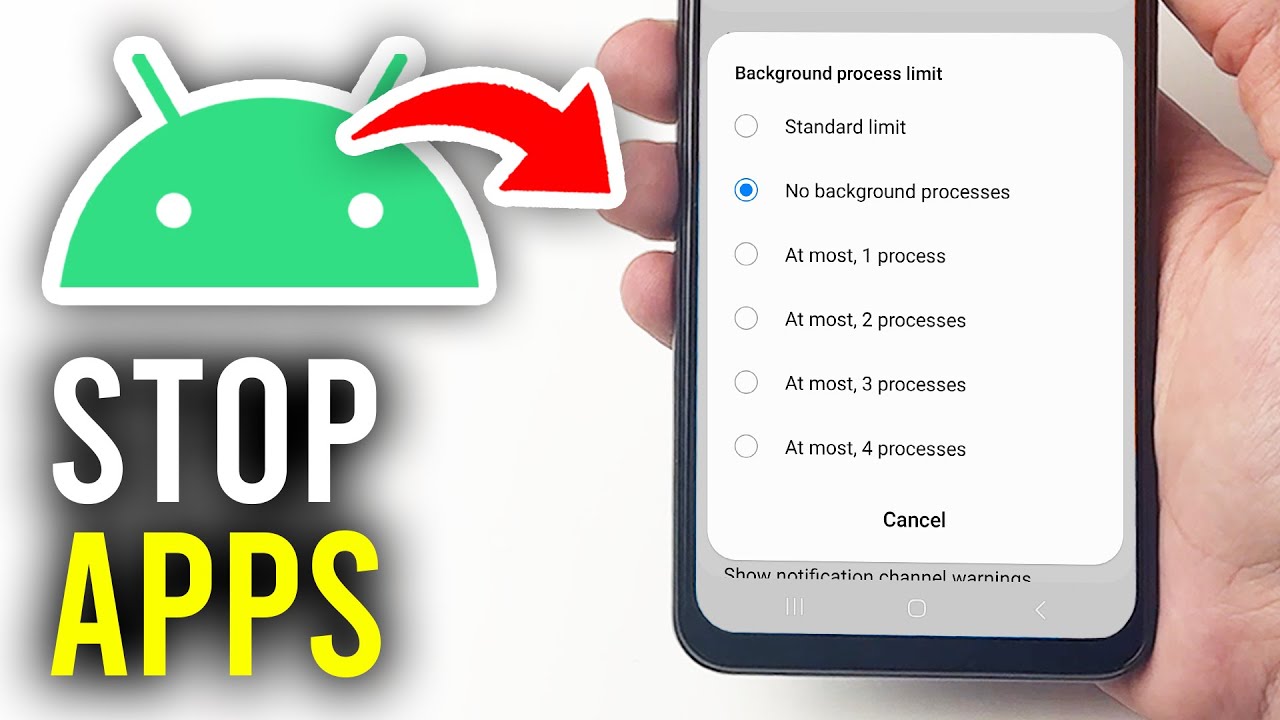
Step-by-step video guide for how to stop apps running in background android
Prerequisites & Quick Summary: Disabling Background Processes
To fully stop (meaning to halt activity or progress, as defined by Merriam-Webster) Android apps from running in the background, navigate to Settings > Apps, select the target application, and tap Force Stop. For a permanent fix, restrict background battery usage. This definitive guide works on all devices running Android 8.0 Oreo or newer. Properly managing background resources optimizes device RAM, preserves battery health, stops unwanted data consumption, and prevents background apps from executing persistent, hidden processes.
Step-by-Step: Restricting and Stopping Background Apps
Apply these chronological steps to halt background processes and apply battery limits:
1. Open your device Settings and tap Apps (or Apps & Notifications).
2. Tap See all apps, select the target application, and tap Force Stop to terminate its active processes.
3. Tap Battery (or App battery usage) within that app's details page.
4. Select the Restricted battery option to prevent the app from waking up in the background.
5. To target system-level RAM consumption, unlock Developer Options (go to Settings > About Phone and tap Build Number seven times).
6. Navigate back to Settings > System > Developer Options, select Running Services, choose the app, and tap Stop.
Managing Responsive Web Portals and PWA Background Workarounds
Progressive Web Apps (PWAs) and responsive portals can bypass your Android OS app restrictions by running processes directly inside your mobile browser. Stop these workarounds using this process:
1. Launch your mobile browser (e.g., Google Chrome) and open the main menu to select Settings.
2. Scroll down and tap Site Settings, then select Background sync.
3. Toggle the slider to disable background synchronization for all sites.
4. Navigate to Notifications within Site Settings and manually block permissions for specific web portals to prevent them from waking service workers.
Troubleshooting Persistent Auto-Restarts and Network Timeouts
If a restricted app automatically restarts or triggers continuous network timeout loops:
Clear Corrupted Cached Data: Go to Settings > Apps, select the app, tap Storage & Cache, and tap Clear Cache to wipe background triggers.
Check Android System WebView: Corrupted web views cause background browser loops. Update the Android System WebView app via the Google Play Store to resolve hang-ups.
Force Disable System Apps: For pre-installed bloatware that continues to trigger autostarts, tap Disable in the App Info screen to completely freeze the app package.
Verification Check and Frequently Asked Questions
To verify successful termination, go to Settings > System > Developer Options > Running Services to confirm the app's process is no longer drawing RAM. You can use an Online-Stopwatch to monitor performance and device idle battery-drain intervals before and after optimization.
Q: Will restricting background apps delay notifications?
Yes. Setting battery usage to "Restricted" prevents real-time background sync. Important messages or push notifications from restricted apps will only deliver when you manually launch the application.
Never miss a tech solution from FlamesNova
Make FlamesNova your trusted and preferred source on Google Search
All factual claims and technical steps are cited and verified against direct documentation.
Contribution: Used the formal definition of 'stop' to ground the term when instructing users on how to completely halt background processes.
Contribution: Suggested as a tool to measure and track device idle time and battery discharge rates to verify the performance gains of disabling background applications.
Related How-To Guides
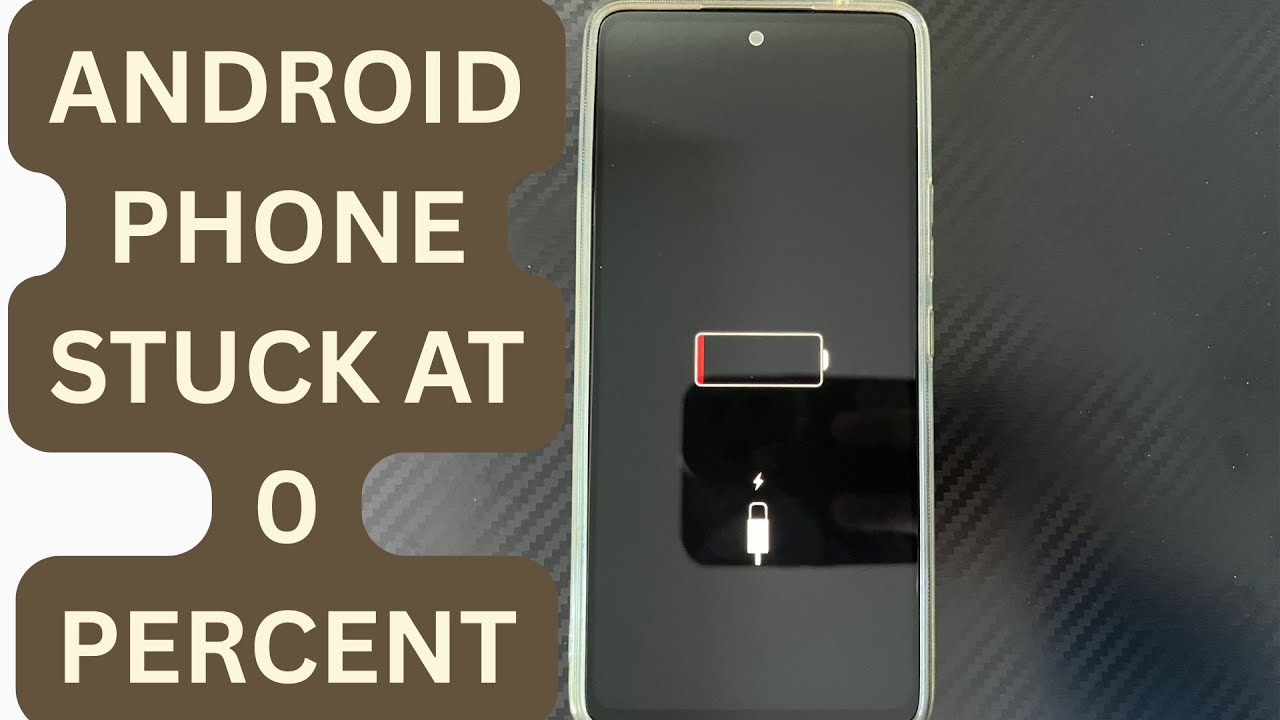
Android Phone Stuck at 0% or 1% Charging All Night: How to Fix
If an Android phone remains at 0% or 1% after charging all night, first stop repeatedly trying to power it on. Test a known-good compatible charger and cable, inspect the charging port, let the phone cool, and leave it charging while switched off. If it remains at 0% or 1%, try a forced restart. If the phone still cannot increase its battery level with known-good charging equipment, the battery, charging port, or charging circuit may require professional inspection.
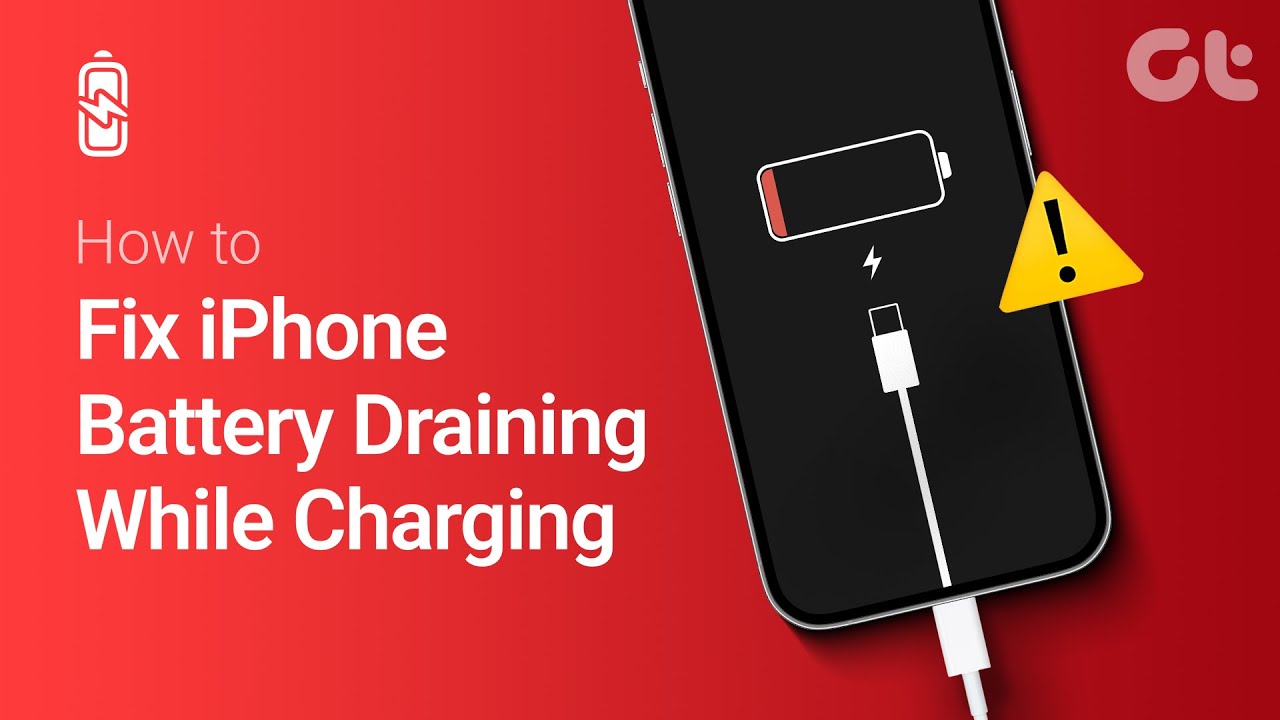
Phone Battery Percentage Dropping While Connected to Charger: 5 Direct Fixes
If your phone battery percentage keeps dropping while it is connected to a charger, the charger may be supplying less power than the phone is consuming. Test another compatible charger and cable, stop demanding apps, check for overheating, inspect the charging port, and test charging while the phone is switched off. If the percentage continues falling with known-good charging equipment, the battery or charging hardware may need inspection.
Itel A-Series Screen Flickering While Charging: Safe Troubleshooting Guide And Fix Steps
If an itel A-Series phone flickers only while charging, unplug it first and test the phone on battery power. Then try a known-good compatible charger and cable, inspect the charging port for dirt or moisture, remove accessories that may trap heat, and avoid using the phone heavily while charging. If flickering continues with different charging equipment or occurs even when the charger is disconnected, the display, charging circuit, battery, or another hardware component may need inspection.