
Why Infinix Phone Charges Extremely Slowly After System Update| Qevra Buzz
If an Infinix phone starts charging extremely slowly immediately after a system update, first restart the phone, check whether a power-hungry process is running in the background, test another compatible charger and cable, inspect the charging port, and allow the phone to cool. If charging remains slow with known-good charging equipment after the update, the software update may have changed charging behavior or exposed an existing charging problem.
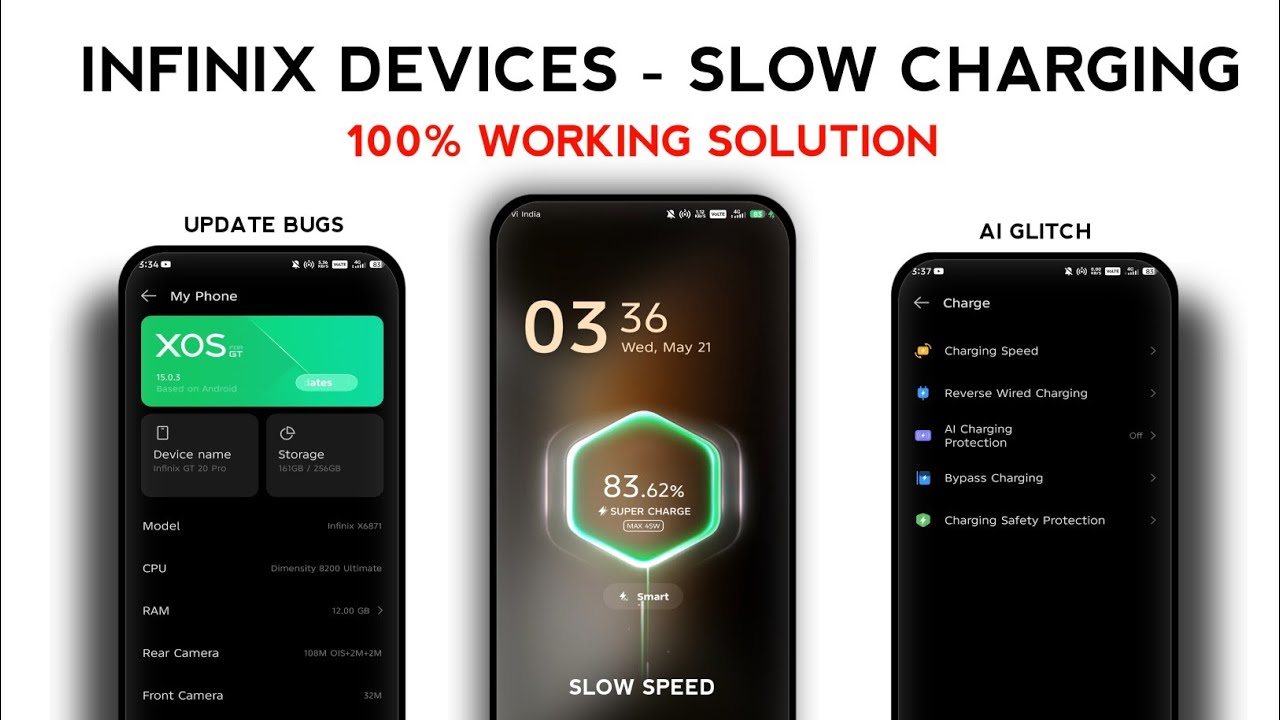
Why Infinix Phone Charges Extremely Slowly After System Update
If your Infinix phone suddenly charges much slower after installing a system update, do not immediately assume that the battery or charging port has failed.
A software update can temporarily increase background activity while the phone finishes system optimization, app updates, indexing, synchronization, and other processes. Charging can also slow down when the phone becomes hot or when the charger and cable are not delivering the expected power.
Follow these steps to identify the actual cause.
1. Restart the Phone After the Update
Start with a complete restart.
After the phone boots, leave it idle for several minutes before connecting the charger.
Then connect the charger and check whether the charging speed improves.
A background process that remained active after the update can increase power consumption and make charging appear unusually slow.
2. Check Battery Usage
Open the battery settings and check which applications are consuming the most power.
Look for an application using unusually high battery power after the update.
If one application is consuming excessive power:
- Update it.
- Force stop it temporarily.
- Restrict unnecessary background activity.
- Restart the phone.
- Test charging again.
If the phone charges normally after the application stops consuming excessive power, that application was contributing to the problem.
3. Give the Phone Time to Finish Post-Update Tasks
Immediately after a major system update, the phone may perform background tasks such as application optimization, synchronization, indexing, and system maintenance.
These processes can temporarily increase processor activity and battery consumption.
If the update was installed recently, keep the phone connected to a reliable charger while it is idle and allow these processes to finish.
Avoid gaming or running demanding applications while testing charging speed.
4. Try Another Compatible Charger
Do not assume that the system update is automatically responsible.
Test the Infinix phone with a known-good compatible charger.
If possible, use the charger and cable that are appropriate for the phone's supported charging standard.
If charging becomes significantly faster with the replacement charger, the original charger may be the problem.
5. Replace the Charging Cable
A damaged or worn cable can cause slow charging even when the phone recognizes that a charger is connected.
Try another known-good compatible cable.
Check the connectors for:
- Dirt
- Bent contacts
- Loose connections
- Physical damage
- Fraying
If the phone charges normally with the replacement cable, replace the damaged cable.
6. Check the Charging Port
Inspect the charging port using good lighting.
Look for dust, lint, dirt, moisture, corrosion, or physical damage.
Debris can prevent the cable from making proper contact and can reduce charging performance.
Do not insert a needle, pin, knife, or other metal object into the port.
If the port is wet, disconnect the charger and allow it to dry completely before charging again.
7. Check Whether the Phone Is Hot
Charging speed can be reduced when the phone becomes too warm.
During testing:
1. Close demanding applications.
2. Stop gaming.
3. Avoid direct sunlight.
4. Remove a thick case temporarily if it traps heat.
5. Leave the phone idle while charging.
Do not put the phone in a refrigerator or freezer to cool it.
8. Check the Charging Indicator
When you connect the charger, look at the charging notification.
Depending on the Infinix model and XOS version, the phone may display information about charging status or charging speed.
If the phone recognizes the charger but no longer shows the expected fast-charging behavior, compare the result with another known-good compatible charger and cable.
9. Avoid Using the Phone While Testing Charging Speed
Do not play games, stream high-resolution video, use the camera continuously, or run demanding applications while testing.
The phone can consume a significant amount of the power being supplied by the charger.
For a meaningful test, leave the screen off and allow the phone to charge without intensive activity.
10. Check Whether the Update Changed Charging Behavior
If charging was normal before the update and became slow immediately afterward, record the following:
- XOS version
- Phone model
- Charger being used
- Cable being used
- Battery percentage at the beginning
- Battery percentage after 30 minutes
This makes it easier to determine whether the problem is actually related to the update.
If the same charger and cable previously charged normally but now consistently charge slowly after the update, a software-related charging-management issue is possible.
11. Install Any Follow-Up System Update
Check the system-update section again after the phone has completed the update.
If another official update is available, install it.
Manufacturers can release follow-up updates that address problems discovered after a major system release.
Do not install unofficial firmware simply because charging became slow.
12. Test Charging With the Phone Switched Off
Switch the Infinix phone off and connect the charger.
Leave it charging for a while.
If charging is significantly faster while the phone is switched off than when it is switched on, background software activity or power consumption may be contributing to the problem.
If charging remains extremely slow even while the phone is switched off, investigate the charger, cable, charging port, battery, and charging hardware.
When the Problem May Be Hardware
The update may not be the actual cause if slow charging continues with different known-good charging equipment.
Possible hardware causes include:
- Damaged charging cable
- Faulty charging adapter
- Dirty or damaged charging port
- Worn battery
- Charging-board fault
- Charging-circuit problem
Professional diagnosis is appropriate if the phone remains extremely slow to charge after the software and charging-equipment tests.
Final Fix
If your Infinix phone started charging slowly immediately after a system update, restart it first and allow post-update background tasks to finish.
Then check battery usage, test a known-good compatible charger and cable, inspect the charging port, keep the phone cool, and test charging while the phone is idle or switched off.
If the problem continues with different chargers and cables, the issue may require a software follow-up update or professional inspection of the charging hardware.
Qevra Directory
For access to the URLs related to this post:
Never miss a tech solution from FlamesNova
Make FlamesNova your trusted and preferred source on Google Search
All factual claims and technical steps are cited and verified against direct documentation.
Contribution: Grounding reference for verified reporting.
Contribution: Grounding reference for verified reporting.
Contribution: Grounding reference for verified reporting.
Contribution: Grounding reference for verified reporting.
Related How-To Guides
Android Phone Stuck at 0% or 1% Charging All Night: How to Fix
If an Android phone remains at 0% or 1% after charging all night, first stop repeatedly trying to power it on. Test a known-good compatible charger and cable, inspect the charging port, let the phone cool, and leave it charging while switched off. If it remains at 0% or 1%, try a forced restart. If the phone still cannot increase its battery level with known-good charging equipment, the battery, charging port, or charging circuit may require professional inspection.
Phone Battery Percentage Dropping While Connected to Charger: 5 Direct Fixes
If your phone battery percentage keeps dropping while it is connected to a charger, the charger may be supplying less power than the phone is consuming. Test another compatible charger and cable, stop demanding apps, check for overheating, inspect the charging port, and test charging while the phone is switched off. If the percentage continues falling with known-good charging equipment, the battery or charging hardware may need inspection.
Itel A-Series Screen Flickering While Charging: Safe Troubleshooting Guide And Fix Steps
If an itel A-Series phone flickers only while charging, unplug it first and test the phone on battery power. Then try a known-good compatible charger and cable, inspect the charging port for dirt or moisture, remove accessories that may trap heat, and avoid using the phone heavily while charging. If flickering continues with different charging equipment or occurs even when the charger is disconnected, the display, charging circuit, battery, or another hardware component may need inspection.