
Tecno Spark "Please Plug Out Charger" Loop: 4 Tested Solutions| full fix guide
If a Tecno Spark repeatedly shows “Please Plug Out Charger,” unplug the charger first and check the USB port for moisture, dirt, or physical damage. Then test a different compatible cable and charger, restart the phone, and check whether the error occurs when the phone is cool and dry. If the message continues with known-good charging equipment, the charging port or charging circuit may need repair.
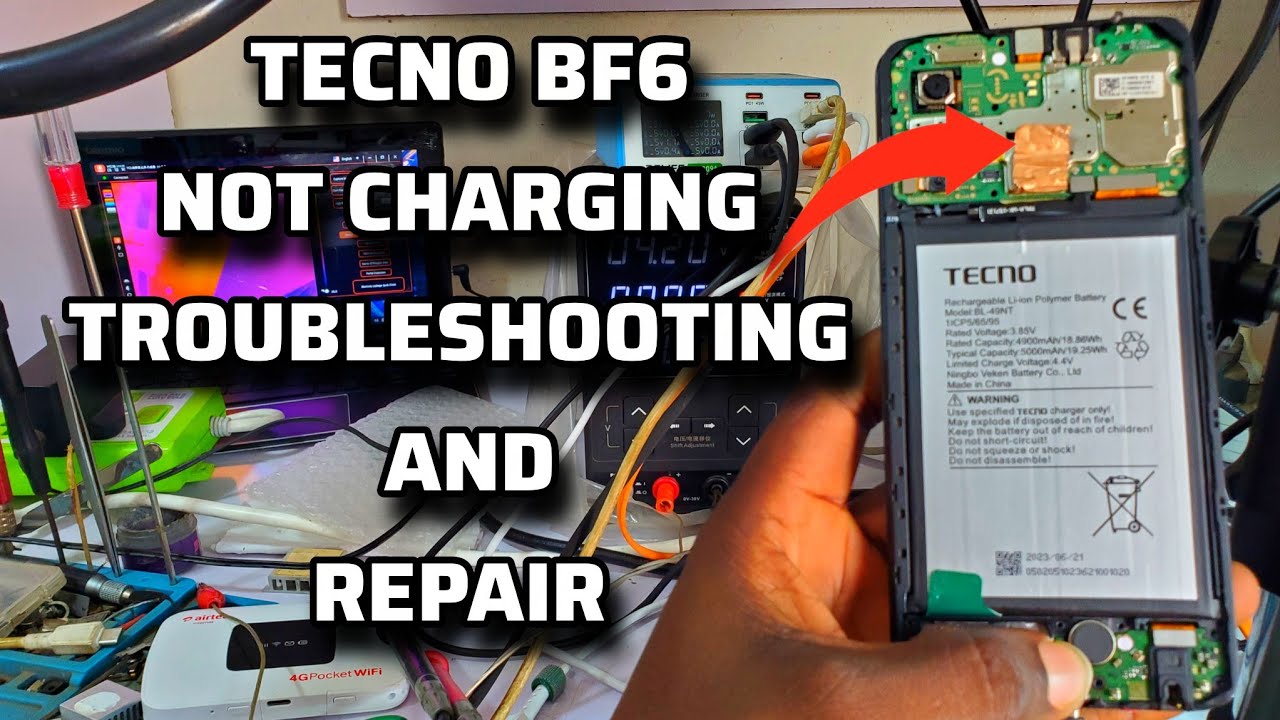
Tecno Spark “Please Plug Out Charger” Loop: 4 Tested Solutions
If your Tecno Spark repeatedly displays “Please Plug Out Charger” whenever you connect a charger, the phone is detecting an abnormal charging condition.
The fastest way to identify the cause is to test the charging equipment, USB port, temperature, and phone itself separately.
Solution 1: Disconnect the Charger and Check the USB Port
Unplug the charger immediately when the message appears.
Turn off the phone and inspect the charging port using a light.
Look for:
- Dust
- Lint
- Moisture
- Corrosion
- Bent or damaged contacts
- Debris preventing the connector from sitting correctly
If the port is wet, do not connect the charger until it has dried completely.
Do not insert a needle, pin, knife, or other metal object into the port. This can damage the charging contacts or cause an electrical short.
If there is loose debris, have the port cleaned safely rather than forcing an object inside it.
After checking the port, reconnect the charger only when the port is clean and dry.
Solution 2: Replace the Cable and Charger
A faulty cable or charging adapter can trigger repeated charging errors.
Use a known-good compatible charger and cable.
Do not test only one replacement component if you can avoid it. Ideally, replace both the cable and adapter for the test.
Then connect the Tecno Spark.
If the error disappears
The original charger, cable, or their connection was likely responsible.
If the error remains
Continue to the next solution.
Solution 3: Cool and Restart the Phone
Excessive heat can affect charging behavior.
If the Tecno Spark feels unusually hot:
1. Disconnect the charger.
2. Stop demanding applications.
3. Move the phone away from direct sunlight or another heat source.
4. Allow it to cool naturally.
5. Restart the phone.
6. Connect a known-good charger again.
Do not put the phone in a refrigerator or freezer to cool it down.
If the error disappears after the phone cools and restarts, monitor whether it returns during normal charging.
Solution 4: Test for a Charging-Port or Hardware Fault
If the message continues after you have:
- Tried another compatible charger
- Tried another charging cable
- Checked the port
- Allowed the phone to cool
- Restarted the phone
- Confirmed that the port is dry
the problem may be inside the phone.
A loose or damaged charging port can produce unstable electrical contact. A fault in the charging board or charging circuit can also cause the phone to reject charging.
Check for these signs
- The cable feels loose in the port.
- Charging stops when the cable moves.
- The phone only charges at a particular angle.
- The error appears with multiple known-good chargers.
- The phone becomes unusually hot when charging.
- The charging percentage repeatedly stops or behaves abnormally.
If these symptoms are present, stop repeatedly reconnecting the charger and have the phone inspected by a qualified technician.
Do Not Keep Ignoring the Message
The “Please Plug Out Charger” warning should not be treated as a normal notification.
If it appears once because of a temporary condition, the problem may disappear after removing the charger and correcting the cause.
If it repeatedly appears with different known-good chargers and cables, changing chargers over and over will not solve the underlying problem.
Quick Diagnosis
Error disappears with another charger and cable:
Replace the original charging equipment.
Error disappears after the port dries:
Moisture was likely interfering with charging.
Error occurs only when the phone becomes hot:
Allow the phone to cool and investigate excessive heat.
Error continues with different chargers and cables:
The charging port or internal charging hardware may require inspection.
Final Fix
Start with the safest checks: unplug the charger, inspect the charging port, make sure it is completely dry, and test a known-good compatible charger and cable.
If the “Please Plug Out Charger” message keeps looping despite those tests, the problem is unlikely to be solved by another charger alone. The Tecno Spark should be checked for a damaged charging port or internal charging fault.
Never miss a tech solution from FlamesNova
Make FlamesNova your trusted and preferred source on Google Search
All factual claims and technical steps are cited and verified against direct documentation.
Contribution: Grounding reference for verified reporting.
Related How-To Guides
Android Phone Stuck at 0% or 1% Charging All Night: How to Fix
If an Android phone remains at 0% or 1% after charging all night, first stop repeatedly trying to power it on. Test a known-good compatible charger and cable, inspect the charging port, let the phone cool, and leave it charging while switched off. If it remains at 0% or 1%, try a forced restart. If the phone still cannot increase its battery level with known-good charging equipment, the battery, charging port, or charging circuit may require professional inspection.
Phone Battery Percentage Dropping While Connected to Charger: 5 Direct Fixes
If your phone battery percentage keeps dropping while it is connected to a charger, the charger may be supplying less power than the phone is consuming. Test another compatible charger and cable, stop demanding apps, check for overheating, inspect the charging port, and test charging while the phone is switched off. If the percentage continues falling with known-good charging equipment, the battery or charging hardware may need inspection.
Itel A-Series Screen Flickering While Charging: Safe Troubleshooting Guide And Fix Steps
If an itel A-Series phone flickers only while charging, unplug it first and test the phone on battery power. Then try a known-good compatible charger and cable, inspect the charging port for dirt or moisture, remove accessories that may trap heat, and avoid using the phone heavily while charging. If flickering continues with different charging equipment or occurs even when the charger is disconnected, the display, charging circuit, battery, or another hardware component may need inspection.