
Tecno Phone Overheating Warning While Plugged In: Sensor vs Port Fix
If a Tecno phone shows an overheating warning immediately after connecting the charger, unplug it and let it cool before testing again. Check the charger and cable, inspect the charging port for moisture or debris, and test with known-good charging equipment. If the warning appears when the phone is cool and with different chargers, the temperature sensor, charging port, battery, or charging circuit may need professional diagnosis.
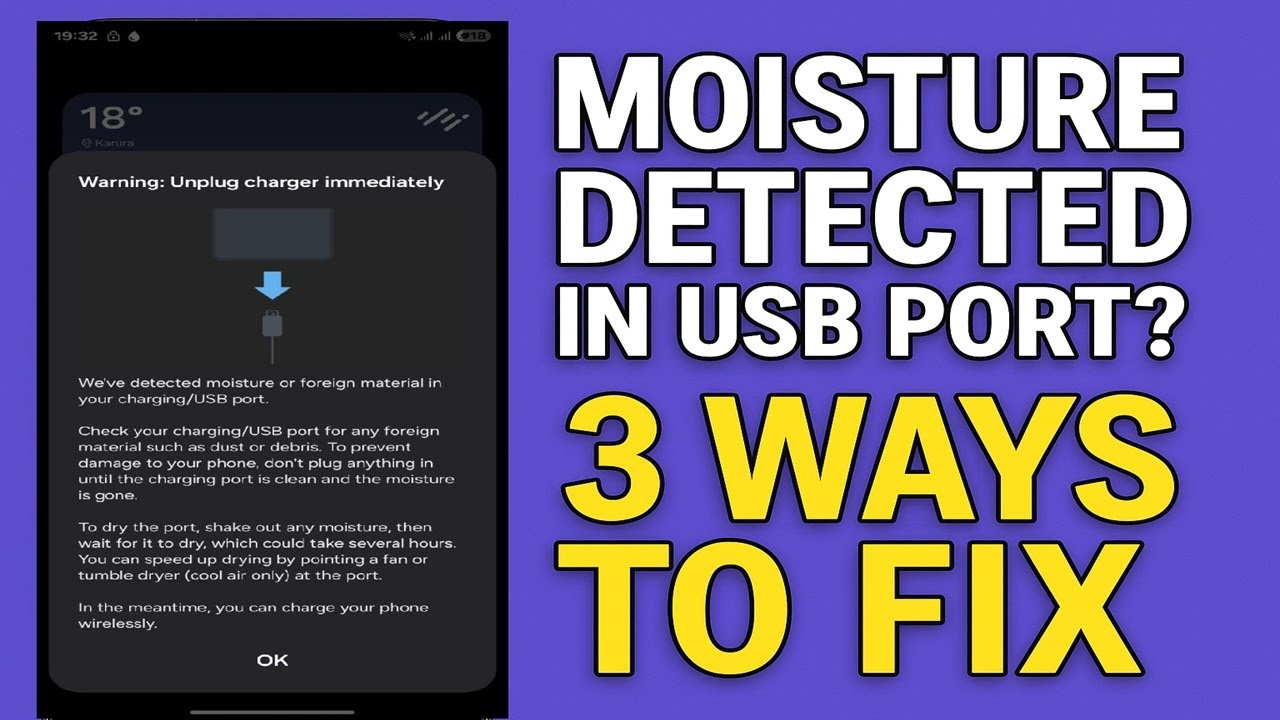
Tecno Phone Overheating Warning While Plugged In: Sensor vs Port Fix
If your Tecno phone displays an overheating warning as soon as you plug in the charger, do not keep reconnecting the charger to see whether the warning disappears.
The phone may actually be getting too hot, or it may be detecting an abnormal temperature reading from the charging system.
The quickest way to separate a genuine temperature problem from a charging-port or sensor problem is to test the phone while it is cool and with known-good charging equipment.
1. Unplug the Charger First
Disconnect the charger immediately when the overheating warning appears.
Stop charging until you determine why the warning is being triggered.
If the phone is genuinely hot, remove it from direct sunlight and allow it to cool naturally.
Do not put the phone in a refrigerator or freezer.
Do not place ice directly against the phone.
2. Check Whether the Phone Is Actually Hot
After the phone has cooled, turn it on without connecting the charger.
Use it normally for a few minutes.
Then check its temperature.
Phone is already hot without charging
A demanding application, poor network signal, background process, or battery problem may be generating excessive heat.
Phone is cool but immediately reports overheating when charging
This points more strongly toward the charging system, temperature detection, charger, cable, port, or related hardware.
This test does not prove that a sensor has failed, but it helps separate actual heat from an abnormal temperature warning.
3. Try a Different Compatible Charger
A faulty charger can cause abnormal charging behavior.
Test the Tecno phone with a known-good compatible charger.
Do not use a damaged adapter or one that becomes excessively hot.
If the overheating warning disappears with the replacement charger, the original charger may be responsible.
4. Replace the Charging Cable
The cable can also cause charging problems.
Try another known-good compatible cable.
Check the original cable for:
- Frayed insulation
- Bent connectors
- Loose connections
- Burn marks
- Physical damage
If the warning only occurs with one cable, replace that cable.
5. Inspect the Charging Port
Turn the phone off and inspect the charging port with a light.
Look for:
- Dust
- Lint
- Dirt
- Moisture
- Corrosion
- Bent contacts
- Physical damage
Debris or moisture can interfere with the electrical connection and cause abnormal charging behavior.
Do not insert a needle, pin, knife, or other metal object into the port.
If the port is wet, leave the phone disconnected until it is completely dry.
6. Check Whether the Cable Fits Normally
Connect the charging cable without forcing it.
If the connector feels unusually loose, falls out easily, or charging starts and stops when the cable moves, the charging port may be damaged.
Do not hold the cable at an angle to keep the phone charging.
A loose connection can create unstable charging and additional heat.
7. Test Charging With the Phone Idle
After the phone has cooled, connect a known-good charger and cable.
Leave the phone idle with the screen off.
Do not open games, cameras, video editors, or other demanding applications.
Watch for:
- Immediate overheating warning
- Charging repeatedly stopping
- Unusual heat
- Battery percentage increasing normally
If the warning appears immediately despite the phone being cool and idle, continue with the hardware checks.
8. Restart the Phone
Disconnect the charger and restart the Tecno phone.
After it boots completely, wait a few minutes and connect the charger again.
A temporary software process can sometimes interfere with charging management.
If the warning disappears after restarting, monitor the phone to see whether the problem returns.
9. Check for a System Update
Open the phone's system-update settings and check for an official update.
If an update is available, install it and restart the phone.
Do not install unofficial firmware simply because the phone is reporting an overheating warning.
If the problem started immediately after a software update, record the software version and monitor whether another official update becomes available.
10. Sensor Problem vs Charging-Port Problem
The behavior can provide useful clues.
Possible charging-port or connection problem
The warning appears when:
- A particular cable is connected.
- The cable is moved.
- Charging repeatedly starts and stops.
- The connector feels loose.
- The port is dirty, wet, or physically damaged.
Possible temperature-sensor or internal hardware problem
The warning appears:
- Immediately after connecting different known-good chargers.
- While the phone is completely cool.
- With the phone idle.
- Even after restarting.
- Without any visible port damage.
This does not confirm that the sensor itself is defective. The battery, charging board, temperature-monitoring circuit, or another component can produce similar behavior.
11. Do Not Ignore a Genuine Overheating Warning
If the phone is genuinely becoming very hot while charging, stop charging it.
Continued charging while the device is excessively hot can damage the battery or other components.
Seek professional inspection if the phone repeatedly becomes extremely hot, shuts down because of temperature, smells unusual, swells, or shows physical battery damage.
12. When the Charging Port Needs Professional Inspection
Have the port checked if:
- Multiple chargers produce the same problem.
- The cable is loose.
- Charging cuts in and out.
- The port has visible damage.
- The warning changes when the cable moves.
- The phone has recently been exposed to water.
Do not attempt to repair the charging port yourself unless you have the appropriate repair equipment and expertise.
13. When the Sensor or Charging Circuit May Need Diagnosis
If the phone is completely cool but immediately reports overheating with different known-good chargers and cables, professional diagnosis is the next step.
A technician can check the charging port, battery, temperature readings, charging board, and charging circuit.
Replacing the battery or sensor blindly is not recommended because the warning can originate from several different components.
Final Fix
Start by unplugging the charger and allowing the Tecno phone to cool completely.
Then test it with a known-good compatible charger and cable, inspect the charging port for moisture or debris, and charge the phone while it is idle.
If the warning only occurs with a particular charger, cable, or when the connector moves, focus on the charging equipment or port.
If the phone is cool but immediately reports overheating with multiple known-good chargers and cables, the problem may involve the battery, temperature monitoring, charging board, or another internal component and should be professionally diagnosed.
Qevra Directory
For access to the URLs related to this post:
Never miss a tech solution from FlamesNova
Make FlamesNova your trusted and preferred source on Google Search
All factual claims and technical steps are cited and verified against direct documentation.
Contribution: Grounding reference for verified reporting.
Related How-To Guides
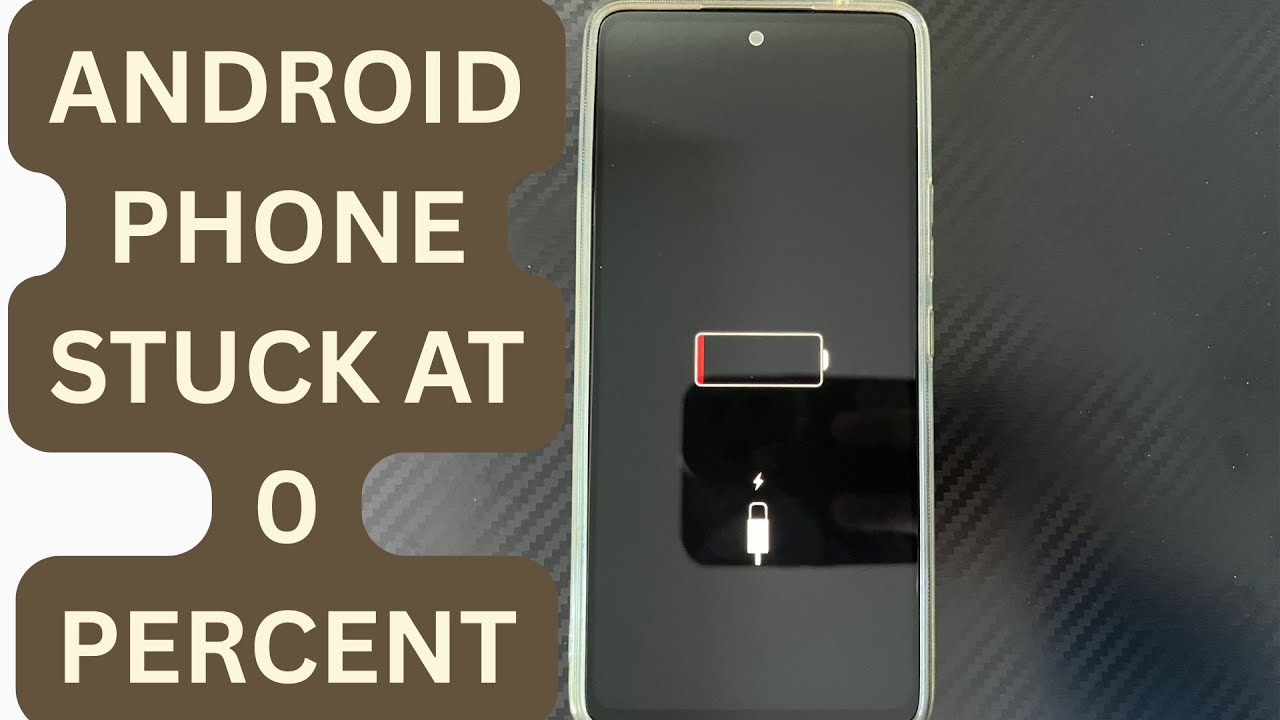
Android Phone Stuck at 0% or 1% Charging All Night: How to Fix
If an Android phone remains at 0% or 1% after charging all night, first stop repeatedly trying to power it on. Test a known-good compatible charger and cable, inspect the charging port, let the phone cool, and leave it charging while switched off. If it remains at 0% or 1%, try a forced restart. If the phone still cannot increase its battery level with known-good charging equipment, the battery, charging port, or charging circuit may require professional inspection.
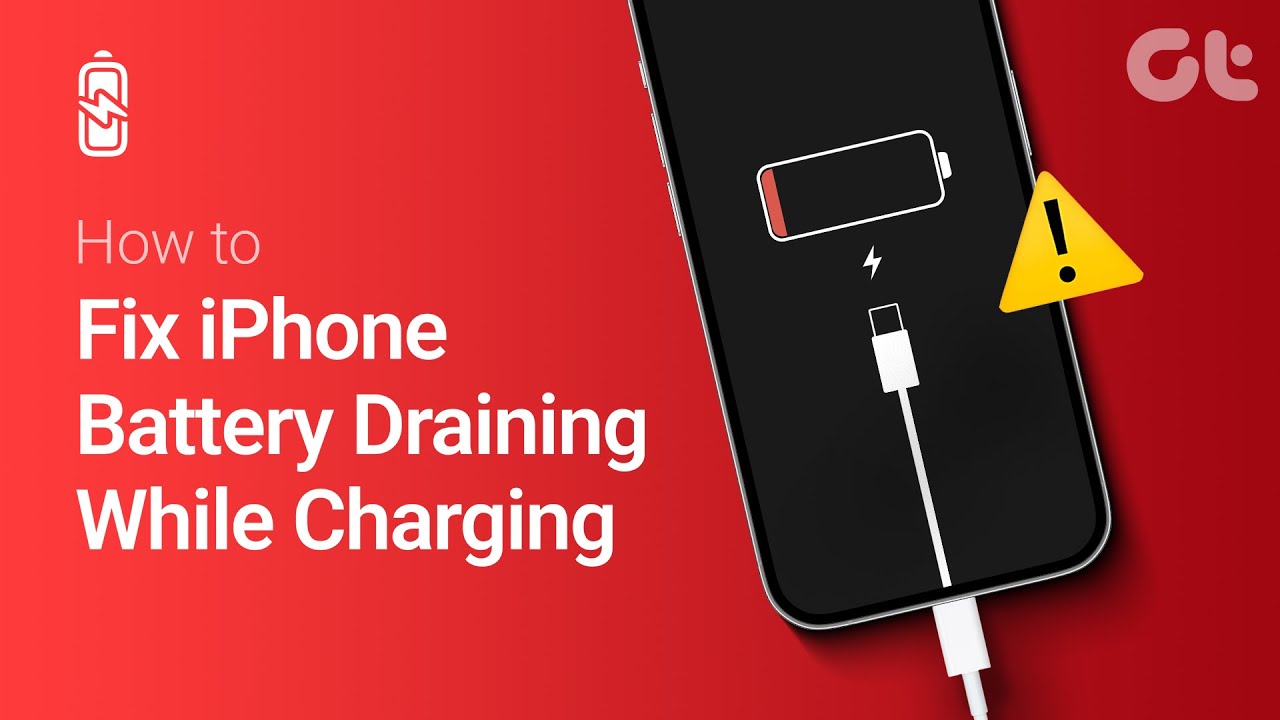
Phone Battery Percentage Dropping While Connected to Charger: 5 Direct Fixes
If your phone battery percentage keeps dropping while it is connected to a charger, the charger may be supplying less power than the phone is consuming. Test another compatible charger and cable, stop demanding apps, check for overheating, inspect the charging port, and test charging while the phone is switched off. If the percentage continues falling with known-good charging equipment, the battery or charging hardware may need inspection.
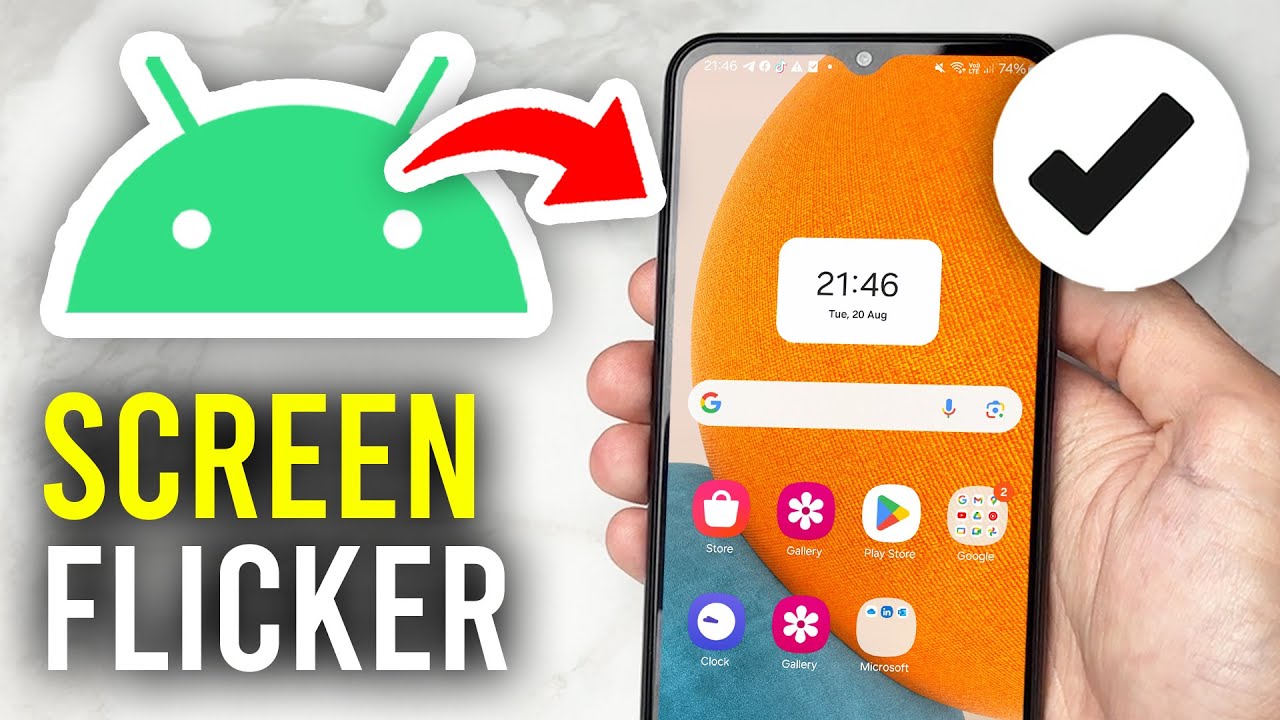
Itel A-Series Screen Flickering While Charging: Safe Troubleshooting Guide And Fix Steps
If an itel A-Series phone flickers only while charging, unplug it first and test the phone on battery power. Then try a known-good compatible charger and cable, inspect the charging port for dirt or moisture, remove accessories that may trap heat, and avoid using the phone heavily while charging. If flickering continues with different charging equipment or occurs even when the charger is disconnected, the display, charging circuit, battery, or another hardware component may need inspection.