
Tecno Camon Fingerprint Sensor Not Responding After Screen Replacement| Full Fix Guide
If the fingerprint sensor on a Tecno Camon stops responding immediately after a screen replacement, check whether the fingerprint flex cable or connector was disturbed during the repair. Restart the phone, confirm fingerprint settings are still available, install any pending system update, and test the sensor again. If fingerprint enrollment is missing or the sensor is not detected after the replacement, the replacement screen, fingerprint assembly, flex connection, or calibration may need professional inspection.
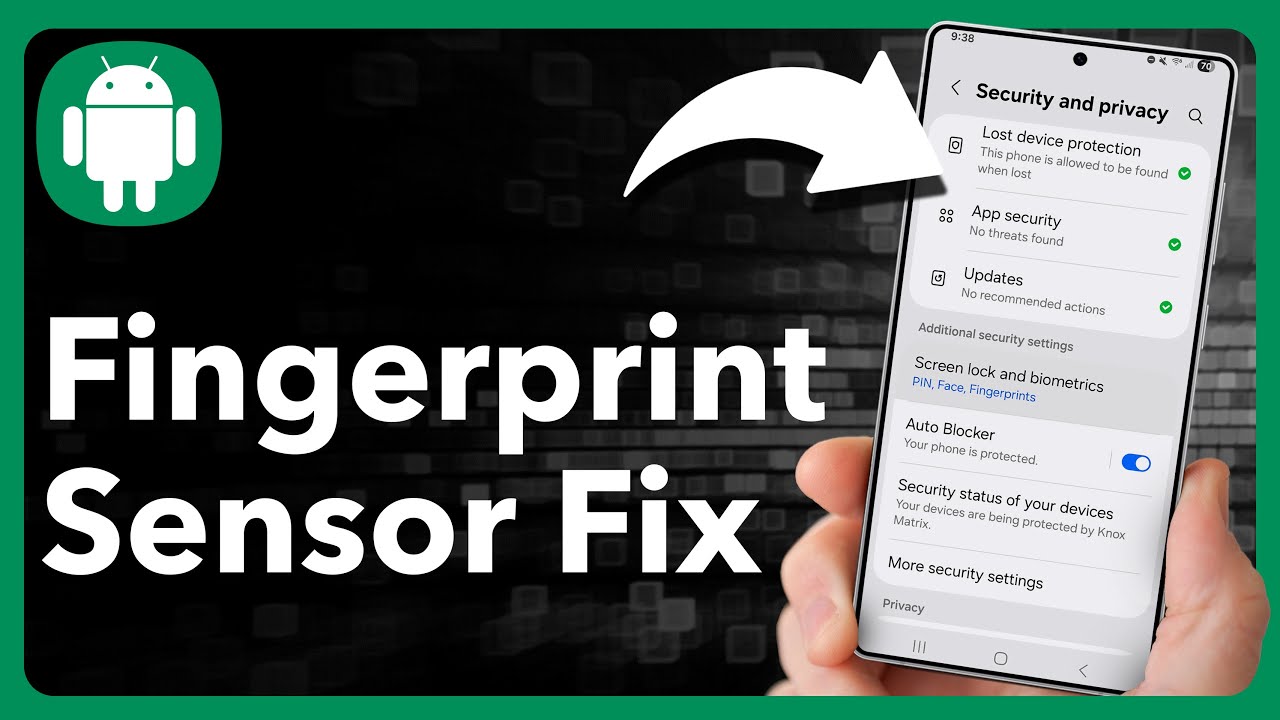
Tecno Camon Fingerprint Sensor Not Responding After Screen Replacement
If the fingerprint sensor on a Tecno Camon stops working immediately after the screen is replaced, the timing is important.
A fingerprint problem that begins directly after a screen repair can be caused by a disconnected or damaged flex cable, an incorrectly fitted replacement display, a disturbed fingerprint assembly, software configuration, or a component that requires proper calibration or compatibility with the replacement part.
Do not immediately replace the fingerprint sensor. First determine whether the phone can still detect it.
1. Restart the Tecno Camon
Restart the phone completely after the screen replacement.
Once it boots, test the fingerprint sensor again.
If the sensor starts responding after the restart, the problem may have been temporary.
If nothing changes, continue with the next step.
2. Check Whether Fingerprint Settings Still Exist
Open the phone's security or biometrics settings.
Look for the fingerprint option.
Fingerprint settings are available
Try deleting an existing fingerprint and registering it again.
If the phone allows you to enroll a new fingerprint, the sensor is being detected by the system.
Fingerprint settings are missing
This is more significant.
If the fingerprint option disappeared completely after the screen replacement, the phone may not be detecting the fingerprint hardware.
Continue with the hardware checks.
3. Check the Fingerprint Flex Connection
During a screen replacement, internal cables and connectors can be disconnected or moved.
A fingerprint flex cable that is not properly seated can prevent the sensor from responding.
The exact fingerprint hardware location differs between Tecno Camon models.
If you are not experienced with phone repairs, do not open the phone yourself.
Take it back to the technician who replaced the screen and ask them to verify that the fingerprint connector and flex cable are correctly seated and undamaged.
4. Check Whether the Replacement Screen Is Compatible
Not every replacement display is electrically identical to the original component.
Depending on the specific Tecno Camon model and fingerprint implementation, the display assembly can interact with the fingerprint system.
If the fingerprint stopped working immediately after installing a replacement display, verify that the replacement part is the correct component for the exact model.
Do not assume that a display that physically fits the phone is automatically fully compatible with every hardware feature.
5. Re-register the Fingerprint
If the fingerprint settings are still available, remove the old fingerprint registration.
Then:
1. Clean and dry your finger.
2. Open the fingerprint settings.
3. Select the option to add a fingerprint.
4. Follow the instructions on the screen.
5. Complete the enrollment process.
6. Lock the phone.
7. Test the newly registered fingerprint.
If enrollment fails at a specific stage, note the exact message displayed.
6. Check for a System Update
Open the phone's software-update settings.
If an official system update is available, install it.
Restart the phone after updating and test fingerprint enrollment again.
Do not install unofficial firmware simply because the fingerprint sensor stopped working after a repair.
7. Test the Sensor Without a Screen Protector
If the fingerprint sensor is integrated into or works through the display, a thick, incompatible, poorly installed, or damaged screen protector can interfere with fingerprint recognition.
If a new screen protector was installed together with the replacement display, temporarily remove it if appropriate and safe to do so.
Then test fingerprint enrollment again.
Do not remove a protector that is bonded to the display assembly unless you know it can be removed safely.
8. Check for Physical Damage
Inspect the repaired phone for other symptoms.
Look for:
- Display flickering
- Touchscreen problems
- Dead areas on the screen
- Loose display connection
- Cracked replacement glass
- Unusual gaps around the display
- Other sensors failing after the repair
If several functions stopped working immediately after the screen replacement, return the phone to the repair technician rather than troubleshooting each component separately.
9. Do Not Factory Reset the Phone First
A factory reset should not be the first solution when a fingerprint sensor stops working immediately after hardware repair.
If the fingerprint hardware is not being detected, erasing the phone will not reconnect a loose flex cable or repair damaged hardware.
Test the connection, compatibility, software detection, and enrollment first.
10. When the Replacement Needs to Be Rechecked
Return the phone to the repair technician if:
- Fingerprint stopped working immediately after the screen replacement.
- Fingerprint settings disappeared.
- New fingerprints cannot be enrolled.
- The sensor does not respond at all.
- The fingerprint flex cable may have been disturbed.
- Other functions also stopped working after the repair.
Tell the technician that fingerprint worked before the screen replacement and stopped immediately afterward.
That information helps narrow the diagnosis.
Is the Fingerprint Sensor Broken?
Not necessarily.
If the sensor worked before the screen replacement and stopped immediately afterward, the repair itself is an important diagnostic clue.
The issue could be a loose connection, damaged flex cable, incompatible replacement component, calibration issue, or software detection problem.
Only proper testing can determine which component has failed.
Final Fix
First restart the Tecno Camon and check whether the fingerprint option is still present in the security settings.
If fingerprint enrollment is available, try registering the fingerprint again and check for an official software update.
If fingerprint settings have disappeared or the sensor remains completely undetected after the screen replacement, return the phone to the repair technician and have the fingerprint connector, flex cable, replacement display compatibility, and related hardware checked.
Do not repeatedly factory-reset the phone or replace the fingerprint sensor without first confirming the actual fault.
Qevra Directory
For access to the URLs related to this post:
Never miss a tech solution from FlamesNova
Make FlamesNova your trusted and preferred source on Google Search
All factual claims and technical steps are cited and verified against direct documentation.
Contribution: Grounding reference for verified reporting.
Contribution: Grounding reference for verified reporting.
Contribution: Grounding reference for verified reporting.
Related How-To Guides
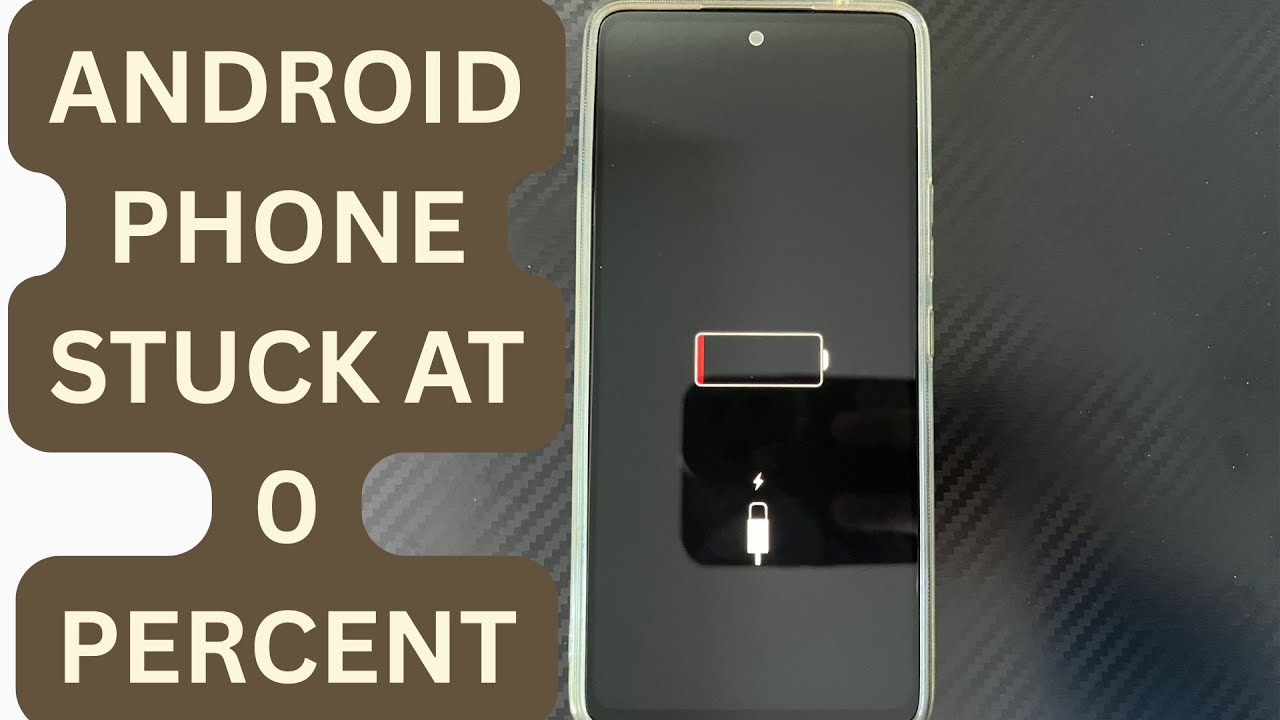
Android Phone Stuck at 0% or 1% Charging All Night: How to Fix
If an Android phone remains at 0% or 1% after charging all night, first stop repeatedly trying to power it on. Test a known-good compatible charger and cable, inspect the charging port, let the phone cool, and leave it charging while switched off. If it remains at 0% or 1%, try a forced restart. If the phone still cannot increase its battery level with known-good charging equipment, the battery, charging port, or charging circuit may require professional inspection.
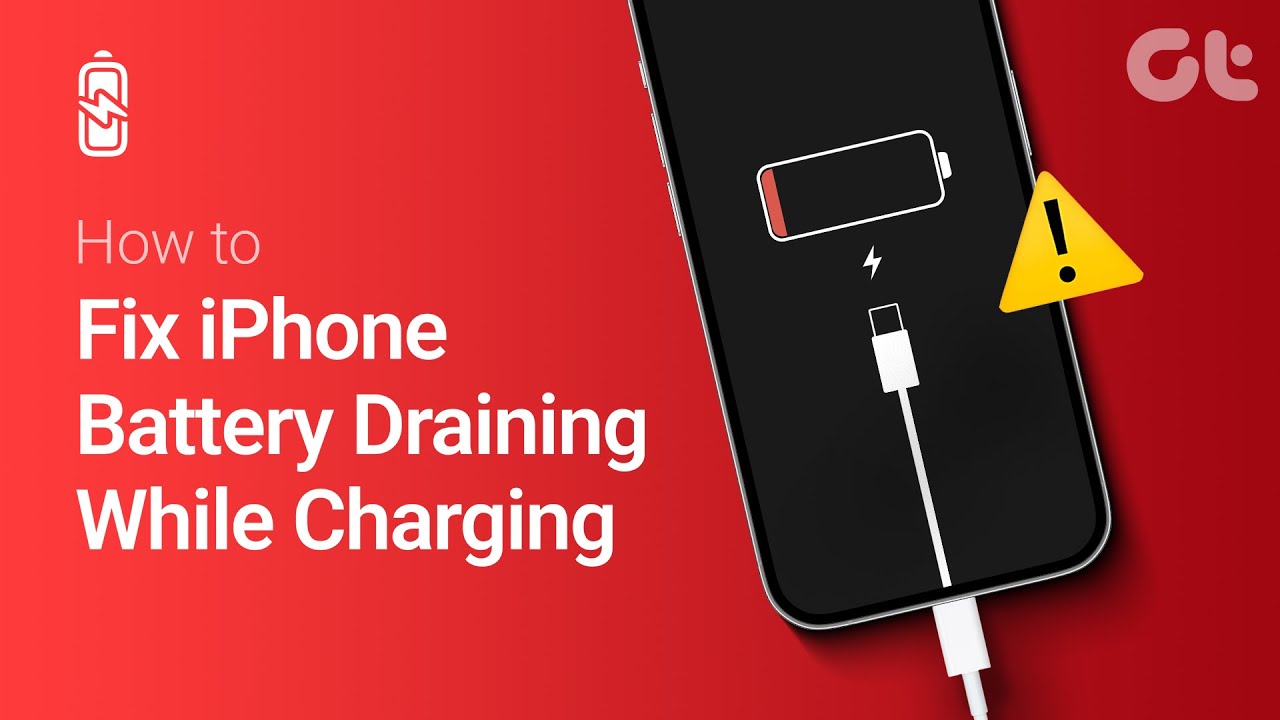
Phone Battery Percentage Dropping While Connected to Charger: 5 Direct Fixes
If your phone battery percentage keeps dropping while it is connected to a charger, the charger may be supplying less power than the phone is consuming. Test another compatible charger and cable, stop demanding apps, check for overheating, inspect the charging port, and test charging while the phone is switched off. If the percentage continues falling with known-good charging equipment, the battery or charging hardware may need inspection.
Itel A-Series Screen Flickering While Charging: Safe Troubleshooting Guide And Fix Steps
If an itel A-Series phone flickers only while charging, unplug it first and test the phone on battery power. Then try a known-good compatible charger and cable, inspect the charging port for dirt or moisture, remove accessories that may trap heat, and avoid using the phone heavily while charging. If flickering continues with different charging equipment or occurs even when the charger is disconnected, the display, charging circuit, battery, or another hardware component may need inspection.