
Itel Phone Stuck on Red Battery Icon While Charging: How to Revive It
If an itel phone stays on a red or empty battery icon while charging and never starts, leave it connected to a known-good charger for 30–60 minutes, then try another cable, charger, and wall outlet. Check the charging port for dirt or moisture and force-restart the phone. If it remains stuck after these tests, the battery, charging port, or charging circuit may need professional diagnosis.
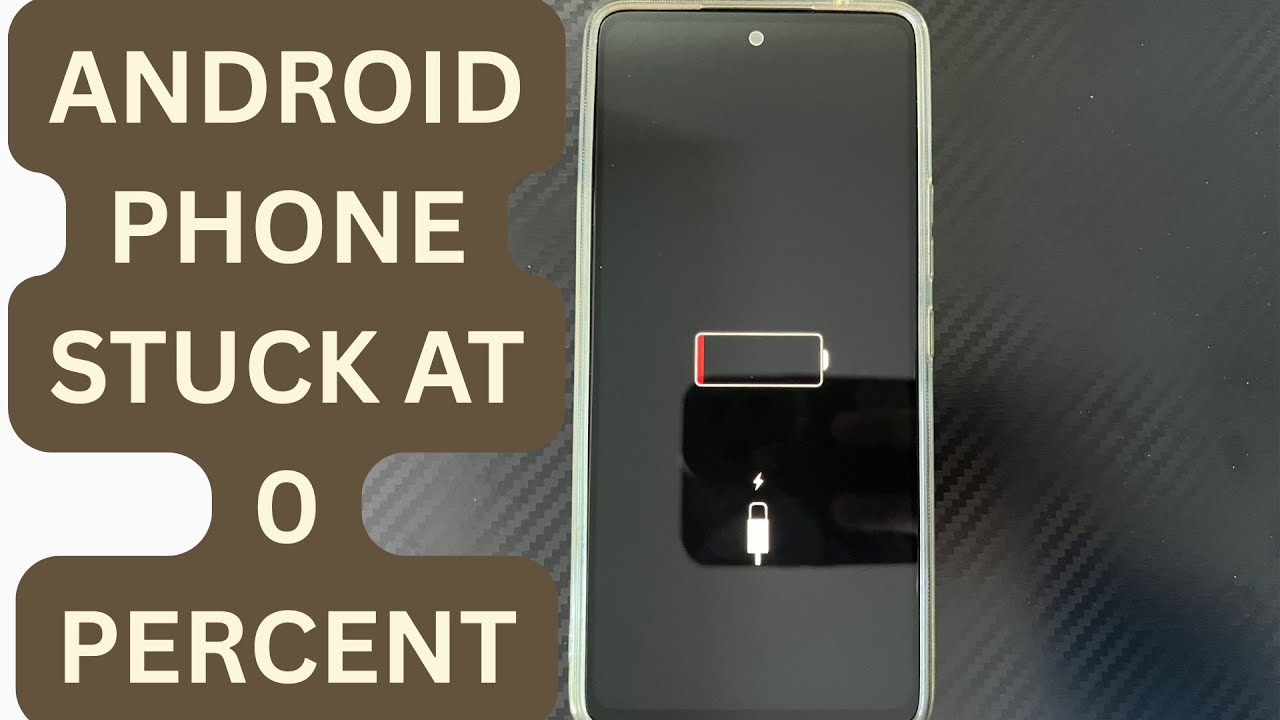
itel Phone Stuck on Red Battery Icon While Charging: How to Fix It
If your itel phone shows only a red or nearly empty battery icon when you connect the charger and never reaches the normal boot screen, the battery may be extremely depleted, the charger may not be supplying enough power, or the phone may have a charging or battery fault.
Follow these steps before assuming the phone is dead.
1. Leave the Phone Charging for 30–60 Minutes
When a battery has been completely drained, the phone may not have enough power to start immediately.
Connect the itel phone to a known-good compatible charger and leave it connected for at least 30 minutes.
Do not repeatedly press the power button during this period.
After 30–60 minutes, try turning the phone on normally.
If the battery icon changes or the phone starts, allow it to continue charging.
2. Try Another Charging Cable
A damaged cable can provide enough connection for the battery icon to appear without delivering enough stable power to recharge the battery.
Disconnect the current cable and try another known-good cable.
Make sure the connector fits properly in the phone's charging port.
Leave the phone connected for another 30 minutes before testing the power button.
3. Try Another Charger and Wall Outlet
The charging adapter or electrical outlet may be the problem.
Test the phone with:
- Another known-good compatible charger
- Another charging cable
- Another wall outlet
Avoid testing through a damaged extension board or unreliable USB port.
If the phone begins charging normally with the replacement equipment, the original charger, cable, or power source was responsible.
4. Inspect the Charging Port
Turn the phone off and inspect the charging port using a light.
Look for:
- Dust
- Lint
- Dirt
- Moisture
- Corrosion
- Physical damage
Debris can prevent the charging connector from making proper contact.
Do not insert a needle, pin, knife, or other metal object into the port.
If the port is wet, disconnect the charger and allow the phone to dry completely before attempting to charge it again.
5. Force-Restart the Phone
After the phone has been connected to a working charger for a sufficient period, try restarting it.
Press and hold the Power button for several seconds.
If that does not work, try the button combination supported by your specific itel model, commonly involving the Power and Volume buttons.
Do not repeatedly force-restart a phone that has almost no battery power. Give it time to charge first.
6. Check Whether the Phone Gets Hot
Monitor the phone while it is charging.
If it becomes unusually hot, disconnect the charger and allow it to cool.
Do not put the phone in a refrigerator or freezer.
Do not continue charging a phone that becomes excessively hot, smells unusual, swells, or shows other signs of battery damage.
7. Check the Charging Connection
While the phone is connected, check whether the charging icon changes when the cable is moved slightly.
If charging repeatedly starts and stops, or only works when the cable is held at a particular angle, the cable or charging port may be damaged.
Do not keep bending or forcing the cable to maintain a connection.
8. Try Charging While the Phone Is Switched Off
If you can reach the phone's shutdown menu, switch it off completely and connect the charger.
Leave it charging for at least 30 minutes.
Then try turning it on again.
If the phone charges while completely switched off but becomes stuck on the red battery icon whenever you try to boot it, the problem may involve the battery's ability to provide enough power during startup or a software/system issue.
9. If the Red Battery Icon Never Changes
If the red battery icon remains unchanged after testing:
- A different compatible charger
- A different cable
- Another wall outlet
- A clean and dry charging port
- At least 30–60 minutes of charging
the problem is unlikely to be solved by repeatedly reconnecting the same charger.
Possible causes include a worn-out battery, damaged charging port, charging-board fault, or another internal power problem.
10. When the Battery Needs Professional Diagnosis
Have the phone inspected if it:
- Never progresses beyond the red battery icon.
- Is not detected by any charger.
- Charges only when the cable is held at an angle.
- Becomes unusually hot while charging.
- Has a swollen or physically damaged battery.
- Shows the same red battery icon after hours of charging.
- Recently suffered water or physical damage.
A technician can test the battery, charging port, charging board, and charging circuit separately.
Do Not Try to Force-Start a Completely Dead Battery
Repeatedly pressing the power button will not restore a battery that is not receiving power.
The correct first test is to provide a stable charging connection and give the phone enough time to recover from a critically low battery.
Final Fix
Start with a known-good compatible charger and cable, connect the itel phone directly to a reliable wall outlet, and leave it charging undisturbed for 30–60 minutes.
If it still shows only the red battery icon, inspect the charging port and try a force restart.
If the phone remains stuck after these tests, especially with multiple working chargers and cables, the battery or charging hardware should be professionally tested rather than repeatedly attempting to charge it.
Never miss a tech solution from FlamesNova
Make FlamesNova your trusted and preferred source on Google Search
All factual claims and technical steps are cited and verified against direct documentation.
Contribution: Grounding reference for verified reporting.
Related How-To Guides
Android Phone Stuck at 0% or 1% Charging All Night: How to Fix
If an Android phone remains at 0% or 1% after charging all night, first stop repeatedly trying to power it on. Test a known-good compatible charger and cable, inspect the charging port, let the phone cool, and leave it charging while switched off. If it remains at 0% or 1%, try a forced restart. If the phone still cannot increase its battery level with known-good charging equipment, the battery, charging port, or charging circuit may require professional inspection.
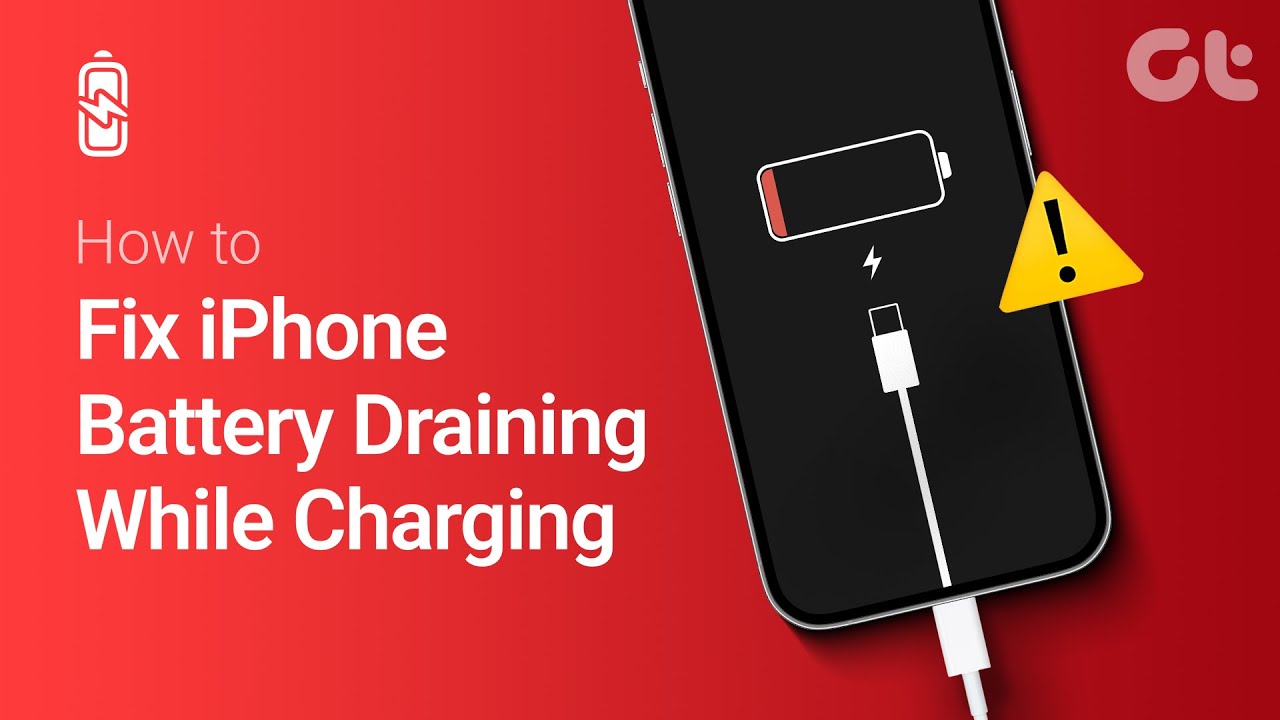
Phone Battery Percentage Dropping While Connected to Charger: 5 Direct Fixes
If your phone battery percentage keeps dropping while it is connected to a charger, the charger may be supplying less power than the phone is consuming. Test another compatible charger and cable, stop demanding apps, check for overheating, inspect the charging port, and test charging while the phone is switched off. If the percentage continues falling with known-good charging equipment, the battery or charging hardware may need inspection.
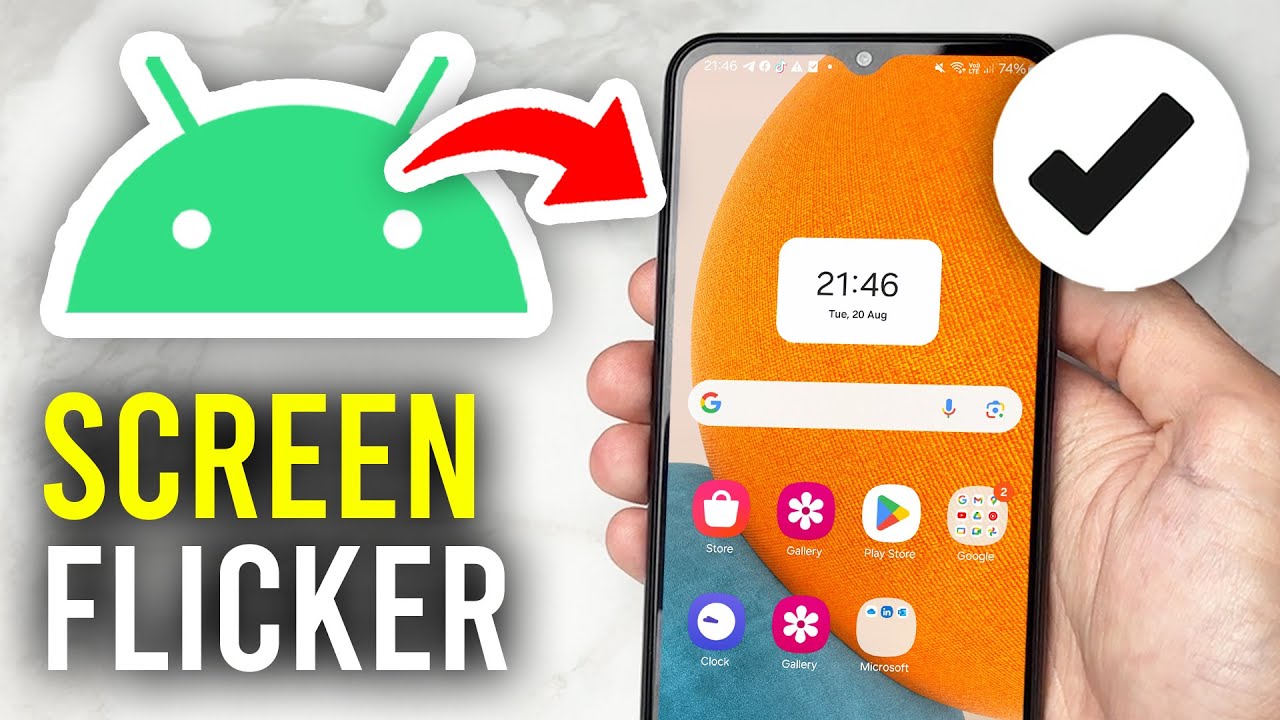
Itel A-Series Screen Flickering While Charging: Safe Troubleshooting Guide And Fix Steps
If an itel A-Series phone flickers only while charging, unplug it first and test the phone on battery power. Then try a known-good compatible charger and cable, inspect the charging port for dirt or moisture, remove accessories that may trap heat, and avoid using the phone heavily while charging. If flickering continues with different charging equipment or occurs even when the charger is disconnected, the display, charging circuit, battery, or another hardware component may need inspection.