
Infinix Hot 40i Charging Error: How to Fix “Please Plug Out Charger”| flames nova
If your Infinix Hot 40i shows “Error! Please Plug Out Charger” or stops charging unexpectedly, start with the charger, USB cable, charging port, moisture and software before attempting any hardware repair. Try a known-good compatible charger and cable, inspect and gently clean the charging port, make sure the port is completely dry, restart the phone, and check for available software updates. If the error remains after these checks, the problem may be related to the phone's charging circuit or another hardware component. At that point, a qualified technician should diagnose the device rather than attempting a motherboard jumper or component repair without the proper equipment.
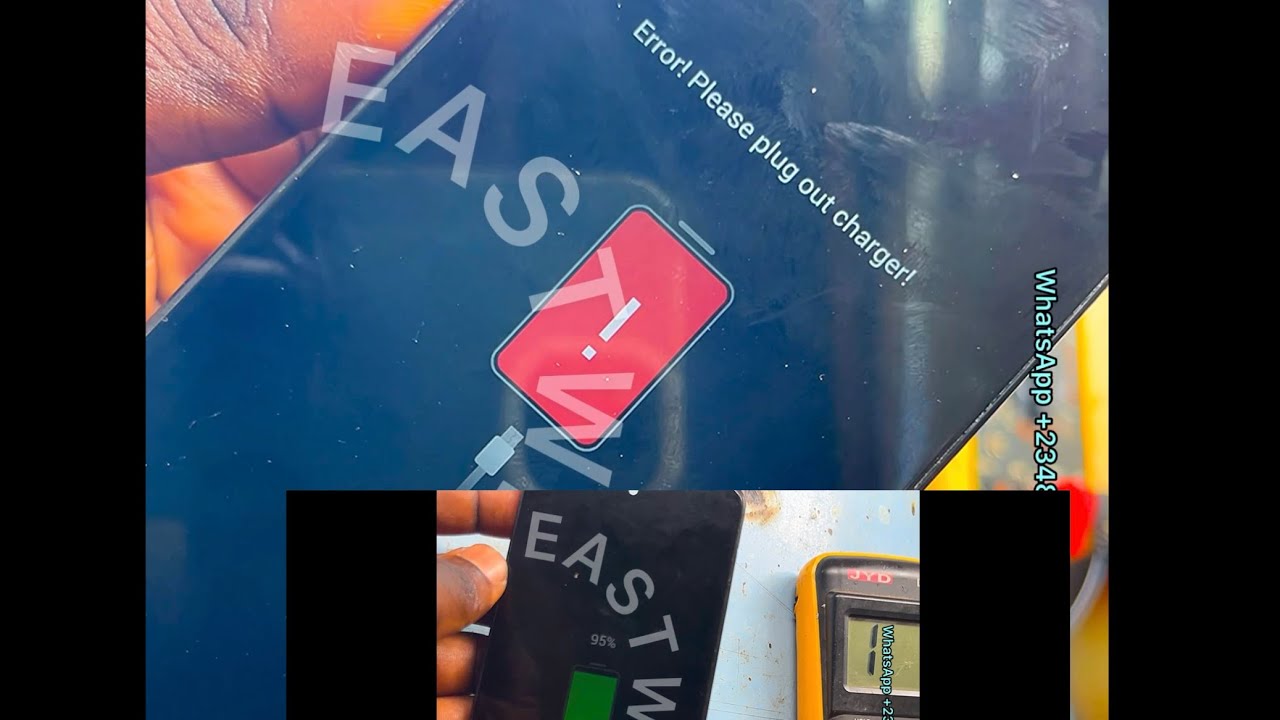
Executive Summary: Infinix Hot 40i Charging Error Solution
The Infinix Hot 40i charging error can appear as a warning such as “Error! Please Plug Out Charger”, or the phone may stop charging shortly after the charger is connected.
Before assuming that the battery is damaged, check the charging accessories, USB-C port, moisture, software and power source. These are the safest things to rule out first.
If the error continues after the basic checks, the problem may require hardware diagnosis.
What Does “Please Plug Out Charger” Mean on Infinix Hot 40i?
When the Hot 40i displays “Error! Please Plug Out Charger”, the phone is detecting a problem related to the charging process.
The exact cause can vary.
Possible causes include:
1. A damaged or incompatible charging cable
2. A faulty charger or power adapter
3. Dirt or debris inside the USB-C port
4. Moisture in the charging port
5. A software-related charging problem
6. A damaged charging port or connector
7. A fault in the charging circuit or another internal component
Some repair sources specifically document this error on the Hot 40i and related Transsion devices as a hardware charging-circuit problem, but that does not mean every Hot 40i showing the warning needs motherboard repair. 2
How to Fix Infinix Hot 40i Charging Error
1. Try Another Compatible Charger
Start with the easiest test.
Use a known-good charger that is compatible with the Hot 40i.
If you have the original Infinix charger, use it for the test.
A faulty or poor-quality charger can cause abnormal charging behavior. Carlcare specifically recommends checking the charger and cable before moving to more complicated repairs. 3
2. Test the USB Cable
The cable can be the problem even when the charger itself works.
Try another known-good USB-C cable.
You can also test the suspected cable with another compatible device to determine whether the cable is functioning correctly.
If the error disappears with another cable, replace the faulty cable rather than opening the phone.
3. Check the Hot 40i Charging Port
Look inside the USB-C port for:
- Dust
- Lint
- Dirt
- Bent or damaged contacts
- Signs of corrosion
- Moisture
Do not force anything into the port.
If there is visible debris, gently clean it with an appropriate soft, dry tool. Carlcare recommends checking for dirt or bent metal in the charging port when an Infinix phone won't charge. 4
4. Check for Moisture
If the phone has recently been exposed to rain, water, high humidity or a liquid spill, stop charging it until the port is completely dry.
Moisture can interfere with charging and may trigger charging protection.
Do not use excessive heat or attempt risky methods to force the phone to charge.
Carlcare specifically lists moisture as a possible reason an Infinix phone may not charge. 5
5. Restart the Phone
A temporary software or system problem can sometimes affect charging behavior.
Disconnect the charger and restart the Hot 40i.
After the phone has fully restarted, connect a known-good charger and check whether the error appears again.
6. Check for Software Updates
Make sure the Hot 40i is running available system software updates.
Charging problems are not always caused by physical components. Carlcare's troubleshooting guidance also recommends checking software updates when dealing with Infinix charging problems. 6
7. Try a Different Power Source
The wall socket or power source can also be responsible.
Try another known-working wall outlet.
You can also test the charger with another compatible device.
This helps separate a phone problem from a charger or power-source problem.
What If the Hot 40i Still Says “Please Plug Out Charger”?
If you have already tested:
- Another compatible charger
- Another USB-C cable
- A clean and dry charging port
- Another power source
- A phone restart
- Available software updates
and the same error continues, the problem may be hardware-related.
At this stage, don't immediately attempt a motherboard jumper or replace random components.
A technician can inspect the charging port, charging board, connectors and charging circuit to determine the actual fault.
Can the Infinix Hot 40i Charging Error Be a Hardware Problem?
Yes.
Repair documentation for the Hot 40i/X6528 describes cases where the “Error! Please Plug Out Charger” warning is associated with the charging circuit. Some repair technicians describe checking specific components and charging-sense lines as part of the repair. 7
However, board-level repair is different from normal troubleshooting.
If you don't have electronics repair equipment and experience, don't copy a motherboard jumper procedure from a video and apply it to your phone.
An incorrect jumper or component modification can cause additional damage.
Should I Replace the Battery?
Not immediately.
A charging error does not automatically mean the battery needs replacement.
First rule out:
1. Charger
2. Cable
3. Charging port
4. Moisture
5. Software
6. Power source
If those checks fail, have the phone properly diagnosed before paying for a battery or charging-board replacement.
When Should You Take the Hot 40i to a Technician?
Get professional help if:
- The phone becomes unusually hot while charging
- The charging port is physically damaged
- The phone was exposed to liquid
- The charger repeatedly causes the error
- The phone shows the error with multiple known-good chargers
- The battery is swollen
- The phone smells burnt
- Charging repeatedly connects and disconnects
- The device no longer charges after the basic checks
If the phone is hot, swollen, smoking, melted or otherwise showing signs of electrical damage, stop charging it and seek professional assistance.
Frequently Asked Questions
How do I fix the Infinix Hot 40i charging error?
Start by testing a known-good compatible charger and cable. Then inspect the USB-C port for dirt, damage or moisture, restart the phone, check for software updates and test another power source.
Why does my Infinix Hot 40i say “Error! Please Plug Out Charger”?
The warning can have several causes, including charging accessories, the USB-C port, moisture, software problems or a hardware fault in the charging circuit.
Why is my Infinix Hot 40i charging but the percentage is not increasing?
Check the charger and cable first, then inspect the charging port and check for excessive heat or moisture. If the problem persists with known-good accessories, the battery or charging hardware may need professional diagnosis.
Can a bad charger cause the Hot 40i charging error?
Yes. A faulty or unsuitable charger or cable can cause abnormal charging behavior, which is why testing known-good accessories is one of the first troubleshooting steps.
Can I fix the Hot 40i charging error without opening the phone?
Sometimes. If the problem is caused by the charger, cable, dirty port, moisture or a software issue, you may be able to resolve it without opening the device.
Should I use a jumper to fix the Hot 40i charging error?
Do not attempt a motherboard jumper repair unless you have the appropriate electronics repair knowledge and equipment. Board-level repair can permanently damage the phone if performed incorrectly.
Practical Solution
For most users, the correct order is simple:
Test the charger → test the cable → inspect the USB-C port → check for moisture → restart the phone → update the software → test another power source.
If the “Please Plug Out Charger” error remains after all of those checks, stop experimenting with the phone and have the charging circuit professionally diagnosed.
That approach can prevent you from spending money on a battery, charging port or motherboard repair when the actual problem is simply the charger, cable or charging port.
Never miss a tech solution from FlamesNova
Make FlamesNova your trusted and preferred source on Google Search
All factual claims and technical steps are cited and verified against direct documentation.
Contribution: Grounding reference for news development and reporting.
Contribution: Grounding reference for news development and reporting.
Contribution: Grounding reference for news development and reporting.
Contribution: Grounding reference for news development and reporting.
Related How-To Guides
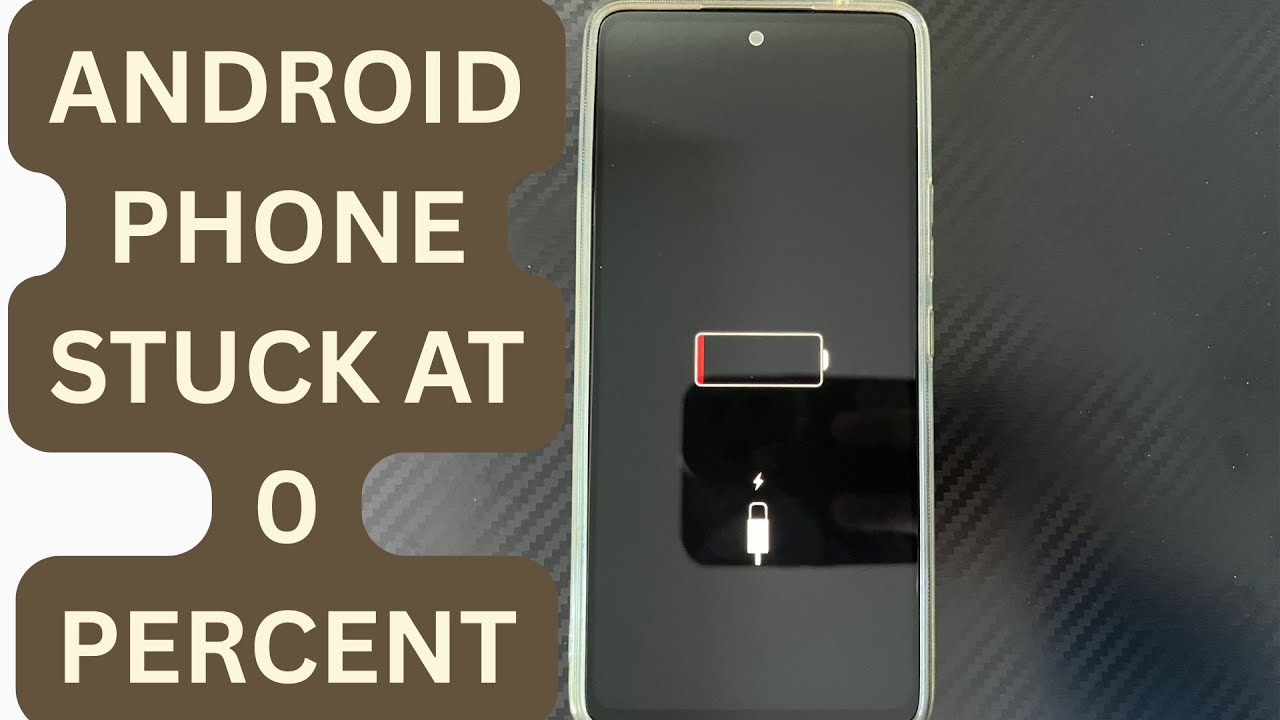
Android Phone Stuck at 0% or 1% Charging All Night: How to Fix
If an Android phone remains at 0% or 1% after charging all night, first stop repeatedly trying to power it on. Test a known-good compatible charger and cable, inspect the charging port, let the phone cool, and leave it charging while switched off. If it remains at 0% or 1%, try a forced restart. If the phone still cannot increase its battery level with known-good charging equipment, the battery, charging port, or charging circuit may require professional inspection.
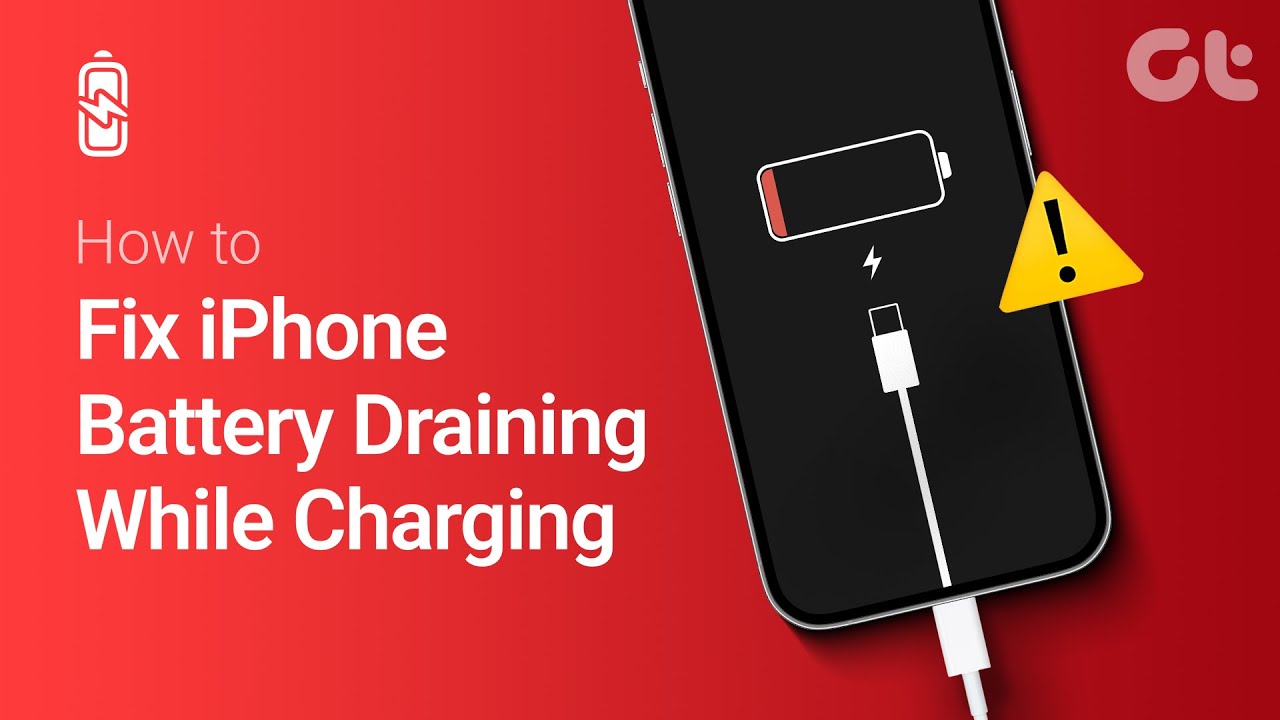
Phone Battery Percentage Dropping While Connected to Charger: 5 Direct Fixes
If your phone battery percentage keeps dropping while it is connected to a charger, the charger may be supplying less power than the phone is consuming. Test another compatible charger and cable, stop demanding apps, check for overheating, inspect the charging port, and test charging while the phone is switched off. If the percentage continues falling with known-good charging equipment, the battery or charging hardware may need inspection.
Itel A-Series Screen Flickering While Charging: Safe Troubleshooting Guide And Fix Steps
If an itel A-Series phone flickers only while charging, unplug it first and test the phone on battery power. Then try a known-good compatible charger and cable, inspect the charging port for dirt or moisture, remove accessories that may trap heat, and avoid using the phone heavily while charging. If flickering continues with different charging equipment or occurs even when the charger is disconnected, the display, charging circuit, battery, or another hardware component may need inspection.