
Infinix Hot 30i "Error! Please Plug Out Charger": What Causes It and How to Fix It
If your Infinix Hot 30i repeatedly shows “Error! Please Plug Out Charger,” the phone is detecting an abnormal charging condition. Common causes include moisture or dirt in the USB port, a damaged charging cable or adapter, poor contact inside the port, excessive heat, or a charging hardware problem. Unplug the charger, inspect and dry the port, try a known-good compatible charger and cable, and restart the phone. If the error continues with different chargers and the port is clean and dry, the charging port or charging circuit may need professional inspection.
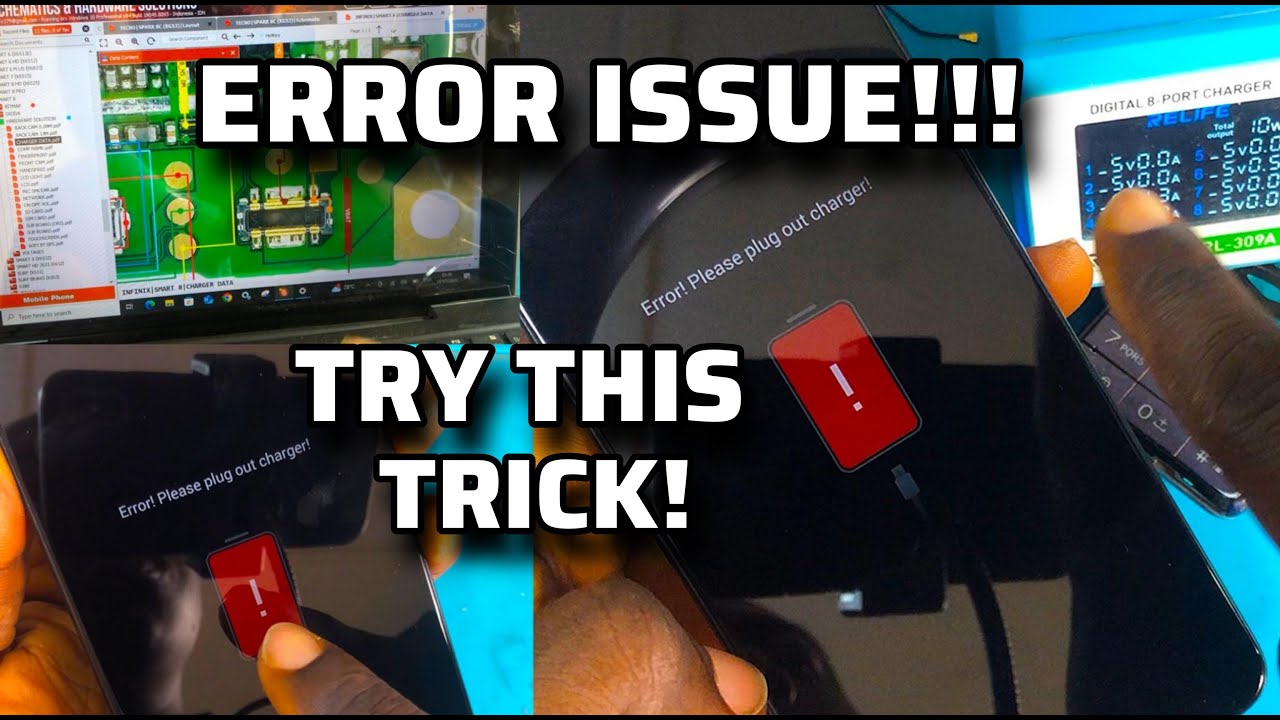
Infinix Hot 30i “Error! Please Plug Out Charger”: What Causes It and How to Fix It
If your Infinix Hot 30i displays “Error! Please Plug Out Charger” while charging, do not keep reconnecting the charger repeatedly. The message means the phone has detected a charging condition it considers unsafe or abnormal.
The problem can come from the charging cable, adapter, USB port, moisture, heat, poor electrical contact, or an internal charging fault.
1. Unplug the Charger Immediately
Remove the charger from the Infinix Hot 30i when the error appears.
Wait a few minutes before testing it again.
If the phone or charging connector feels unusually hot, allow the phone to cool down before reconnecting a charger.
Do not continue charging while the error keeps appearing.
2. Check the USB Charging Port
Turn off the phone and inspect the USB port with a light.
Look for:
- Dust
- Lint
- Dirt
- Moisture
- Corrosion
- A damaged or bent connector
Dirt inside the port can prevent the charging connector from making proper contact.
Do not insert a needle, pin, knife, or other metal object into the port. You can damage the contacts or cause a short circuit.
If the port is wet, leave the phone disconnected and allow it to dry completely before charging again.
3. Try Another Charging Cable
A damaged USB cable can cause unstable charging and trigger the error.
Try a different cable that is known to work correctly with the phone.
Check both ends of the cable for:
- Bent connectors
- Loose connections
- Frayed wires
- Burn marks
- Physical damage
If the error disappears with another cable, replace the faulty cable.
4. Try Another Compatible Charger
The charging adapter can also be responsible.
Use a known-good compatible charger and cable instead of continuing to test the charger that triggered the error.
If the phone charges normally with the replacement charger, the original adapter may be faulty or incompatible with the required charging conditions.
5. Check for Moisture
If the phone has recently been exposed to rain, water, a humid environment, or a wet charging cable, do not immediately reconnect the charger.
Disconnect everything and allow the charging port to dry naturally.
Do not use a hair dryer or apply direct high heat to the phone.
Do not deliberately pour liquid into the port to clean it.
6. Let the Phone Cool Down
Charging can become abnormal when a phone is excessively hot.
If the Infinix Hot 30i is hot:
1. Disconnect the charger.
2. Remove the phone from direct sunlight or another hot environment.
3. Stop demanding applications.
4. Allow the device to return to a normal temperature.
5. Try charging again with a known-good charger.
Do not place the phone in a refrigerator or freezer to cool it down.
7. Restart the Phone
After checking the charger and allowing the phone to cool and dry, restart the Hot 30i.
Then connect a known-good charger and monitor the phone.
If the error was caused by a temporary software or charging-process problem, restarting may clear it.
8. Check Whether the Error Appears With Every Charger
This is an important test.
Try a different compatible charger and cable.
If the error disappears
The original charger or cable is the likely cause.
If the error continues
Check the charging port for contamination or damage.
If the port is clean and completely dry and the error appears with multiple known-good chargers and cables, the problem may be inside the phone.
9. Do Not Force the Charging Cable
If the cable only works when it is held at a particular angle, or if the connector feels unusually loose inside the port, stop using it.
A damaged charging port can cause intermittent electrical contact.
Repeatedly forcing or moving the connector can make the physical damage worse.
10. When the Charging Port May Be Faulty
Professional inspection is appropriate if the error continues after:
- Trying another compatible charger
- Trying another cable
- Allowing the phone to cool
- Checking for moisture
- Checking and safely cleaning the port
- Restarting the phone
A damaged charging port, charging board, charging circuit, or another internal component may require repair.
Can You Keep Charging With the Error?
It is better not to continue charging while the phone is displaying “Error! Please Plug Out Charger.”
The message is specifically telling you to disconnect the charger because the phone has detected an abnormal charging condition.
Find the cause first rather than repeatedly reconnecting the charger.
Final Solution
Start with the simplest test: unplug the charger and try a different known-good compatible cable and charger after checking that the USB port is clean and completely dry.
If the error disappears, the original charging equipment was likely responsible.
If the error remains with different chargers and cables, especially when the port is clean and dry, the Infinix Hot 30i should be inspected by a qualified technician for a possible charging-port or internal charging fault.
Never miss a tech solution from FlamesNova
Make FlamesNova your trusted and preferred source on Google Search
All factual claims and technical steps are cited and verified against direct documentation.
Contribution: Grounding reference for verified reporting.
Related How-To Guides
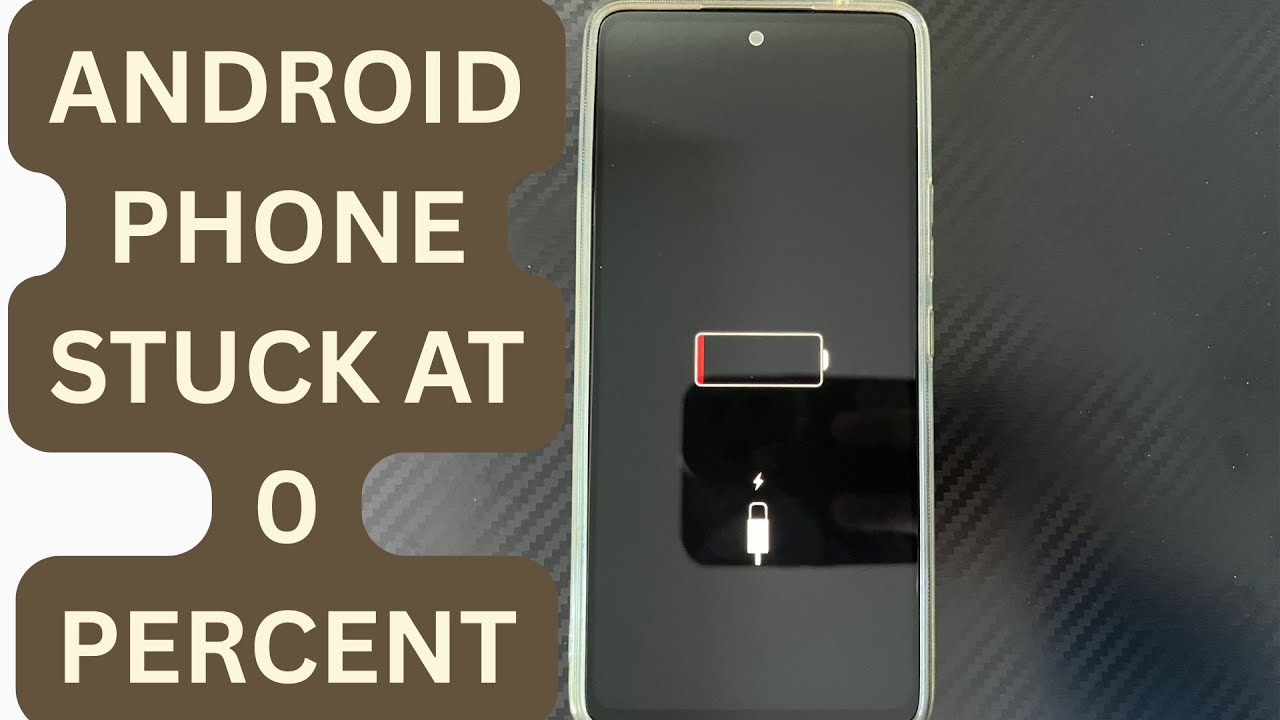
Android Phone Stuck at 0% or 1% Charging All Night: How to Fix
If an Android phone remains at 0% or 1% after charging all night, first stop repeatedly trying to power it on. Test a known-good compatible charger and cable, inspect the charging port, let the phone cool, and leave it charging while switched off. If it remains at 0% or 1%, try a forced restart. If the phone still cannot increase its battery level with known-good charging equipment, the battery, charging port, or charging circuit may require professional inspection.
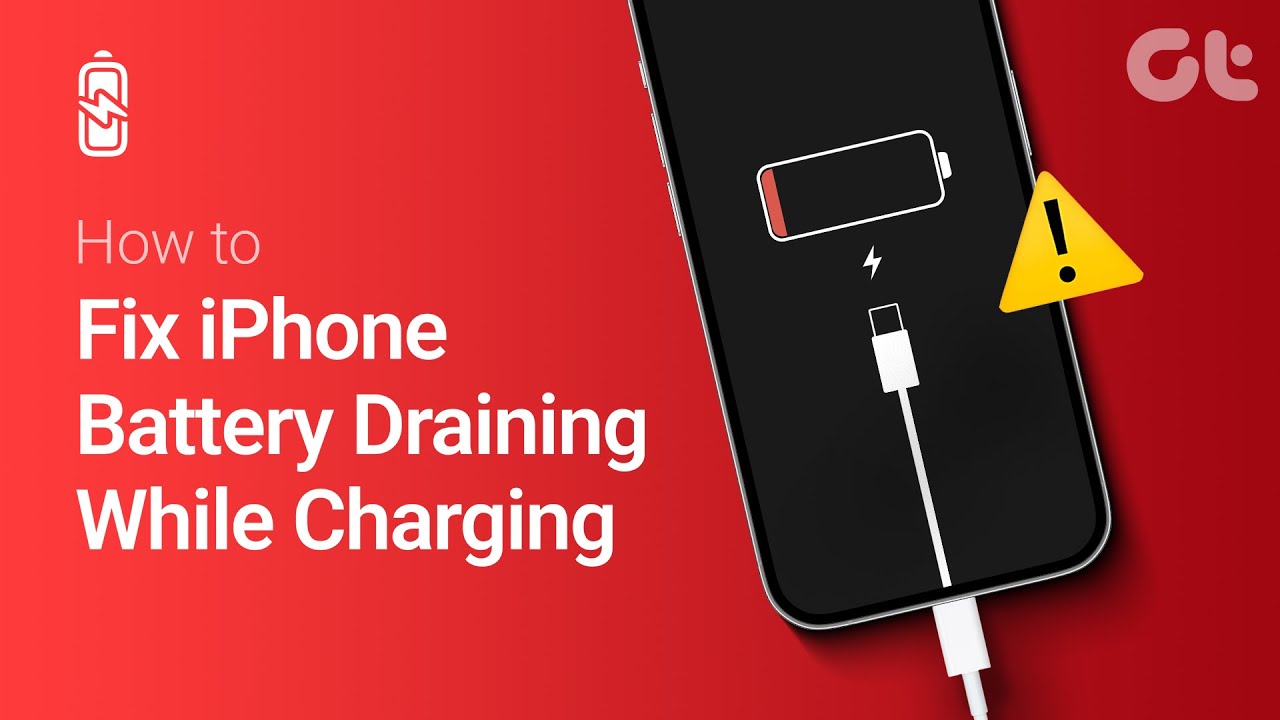
Phone Battery Percentage Dropping While Connected to Charger: 5 Direct Fixes
If your phone battery percentage keeps dropping while it is connected to a charger, the charger may be supplying less power than the phone is consuming. Test another compatible charger and cable, stop demanding apps, check for overheating, inspect the charging port, and test charging while the phone is switched off. If the percentage continues falling with known-good charging equipment, the battery or charging hardware may need inspection.
Itel A-Series Screen Flickering While Charging: Safe Troubleshooting Guide And Fix Steps
If an itel A-Series phone flickers only while charging, unplug it first and test the phone on battery power. Then try a known-good compatible charger and cable, inspect the charging port for dirt or moisture, remove accessories that may trap heat, and avoid using the phone heavily while charging. If flickering continues with different charging equipment or occurs even when the charger is disconnected, the display, charging circuit, battery, or another hardware component may need inspection.