
How to Optimize Battery Life on OnePlus 16 OxygenOS / ColorOS 17 | Qevra Buzz
To improve OnePlus 16 battery life on OxygenOS or ColorOS 17, identify apps with unusually high battery usage, restrict unnecessary background activity, reduce display power consumption, use automatic brightness, disable features you do not need, and keep the system and apps updated. Avoid permanently using extreme power-saving modes unless necessary because they can restrict normal phone functions.
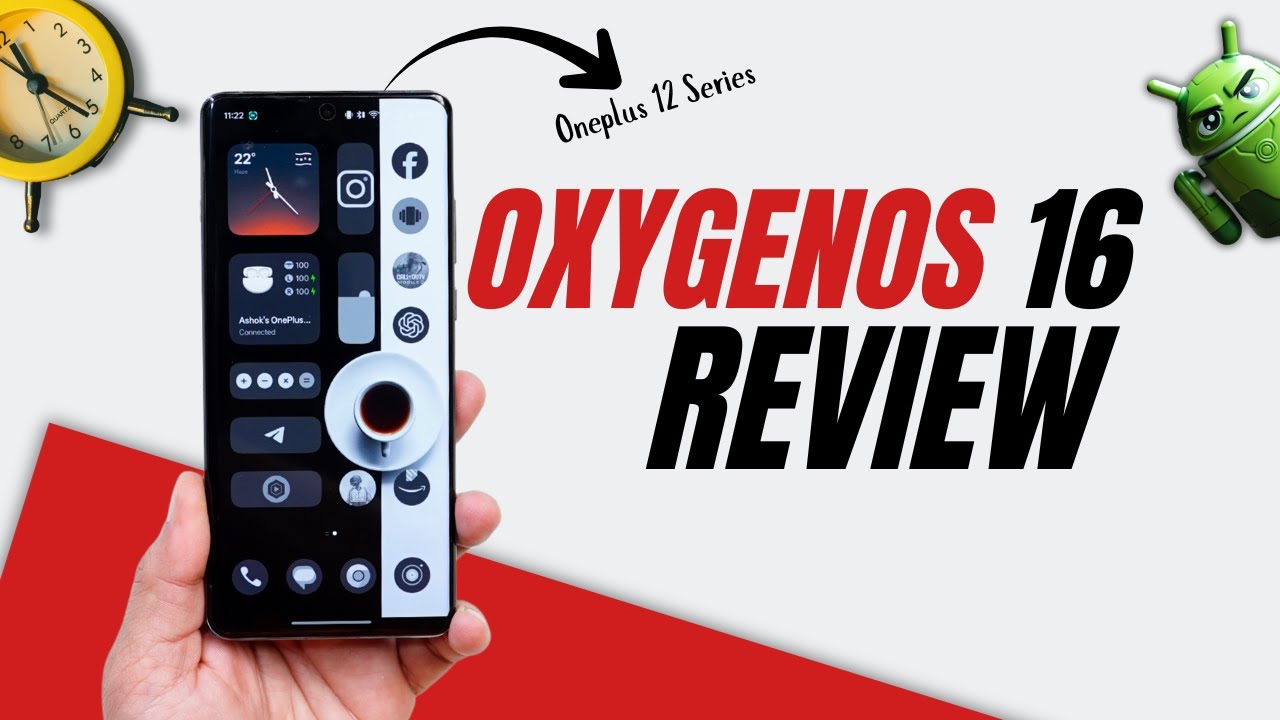
How to Optimize Battery Life on OnePlus 16 OxygenOS / ColorOS 17
If your OnePlus 16 battery is draining faster than expected, start by finding what is consuming the power instead of immediately enabling the most restrictive battery-saving mode.
Display brightness, demanding applications, mobile signal, background activity, high refresh rates, gaming, navigation, camera use, and constant connectivity can all increase battery consumption.
1. Check Battery Usage First
Open the phone's battery settings and review the battery usage list.
Look for applications consuming an unusually large percentage of battery compared with how much you actually used them.
If one app is using excessive power:
- Update the app.
- Force stop it temporarily.
- Check its background activity.
- Restrict unnecessary background activity.
- Uninstall it if the problem began after installing it.
Do not restrict every application indiscriminately because some apps need background access for notifications and synchronization.
2. Use Automatic Brightness
The display can be one of the largest sources of battery consumption.
Enable automatic brightness or manually reduce brightness to a comfortable level.
Avoid keeping the display at maximum brightness when it is not necessary.
If you regularly use the phone outdoors, allow automatic brightness to increase the display temporarily instead of leaving maximum brightness enabled throughout the day.
3. Reduce Screen Timeout
Set a shorter screen timeout so the display does not remain active after you stop using the phone.
Open the display settings and choose a timeout that suits your usage.
A shorter timeout is particularly useful if you frequently put the phone down without manually locking it.
4. Adjust the Refresh Rate When Maximum Smoothness Is Not Needed
A higher display refresh rate can increase power consumption.
If battery life is more important than maximum display smoothness, use the phone's automatic or standard refresh-rate option where available.
For gaming and scrolling, you can restore a higher refresh rate when you specifically need it.
The available refresh-rate options depend on the device and software version.
5. Restrict Apps That Do Not Need Background Activity
Open the battery settings for applications that you rarely use.
If an application continues consuming power in the background, use the available battery optimization or background-activity controls.
Do not aggressively restrict messaging, alarm, email, authentication, or other applications that need to operate in the background.
6. Reduce Unnecessary Location Access
Location services can consume additional power when applications repeatedly request your location.
Open:
Settings > Location
Review which applications have location permission.
For apps that do not need continuous location access, change their permission to a less permissive option where available.
Only allow continuous location access when the application's function actually requires it.
7. Turn Off Connections You Are Not Using
Disable features you are not currently using when they are unnecessary.
Examples include:
- Bluetooth
- Wi-Fi
- Hotspot
- NFC
You do not need to disable everything permanently.
For example, if you are actively using Bluetooth headphones, leaving Bluetooth enabled is necessary. The goal is to remove unnecessary background connectivity rather than turning off useful features.
8. Check Mobile Signal Strength
A weak cellular signal can increase power consumption because the phone may use more energy maintaining its network connection.
If battery drain is significantly worse in a location with very poor reception, compare battery usage in an area with stronger signal.
When you do not need cellular connectivity in an area with no usable signal, Airplane Mode can prevent the phone from repeatedly searching for a network.
9. Reduce Gaming Power Consumption
Long gaming sessions can consume substantial battery because the processor, graphics hardware, display, and network connection can all operate at high levels.
To extend battery life during gaming:
- Reduce graphics quality.
- Reduce frame rate where practical.
- Disable unnecessary visual effects.
- Avoid maximum-performance modes when you do not need them.
- Reduce display brightness.
If the phone becomes excessively hot, stop the game and allow the device to cool.
10. Avoid Intensive Use While Charging
Gaming, video recording, navigation, and other demanding workloads while charging can increase heat and power consumption.
For faster and cooler charging, leave demanding applications closed while the phone charges.
If the phone becomes unusually hot while charging, disconnect it and allow it to cool naturally.
11. Use Battery Saver When You Actually Need It
Use the built-in battery-saving mode when you need to extend the remaining battery.
Battery-saving modes can reduce background activity, performance, synchronization, or other functions depending on the software.
For normal daily use, optimize individual settings rather than permanently using the most restrictive power-saving mode.
12. Keep OxygenOS or ColorOS Updated
Check for official system updates under the phone's software-update settings.
Also update applications through the official app store.
Software updates can improve power management and fix applications or system processes that consume excessive resources.
If battery drain begins immediately after a system or application update, check for a subsequent update before making major changes to the phone.
13. Restart the Phone If Battery Drain Suddenly Increases
If the battery normally lasts well but suddenly starts dropping much faster, restart the phone.
After restarting, check battery usage again.
If the abnormal drain returns, identify which application or system process is responsible rather than repeatedly restarting the phone.
14. Watch for Heat During Idle Use
A phone that is warm while performing demanding tasks is different from a phone that remains hot while sitting idle.
If the OnePlus 16 becomes noticeably warm when you are barely using it, check battery usage and recently installed applications.
A continuously active application, poor network conditions, charging problem, or system process may be keeping the device busy.
15. Do Not Use Battery-Calibration Tricks
You do not need to repeatedly drain the battery to 0% and recharge it to 100% to "calibrate" a modern smartphone battery.
Repeated deep discharges are unnecessary for ordinary battery maintenance.
Charge the phone normally and avoid deliberately keeping the battery at extremely low levels when you do not need to.
If Battery Life Is Still Poor
After optimizing the display, background activity, connectivity, and applications, check whether the battery drain is still excessive.
If the phone loses a large amount of charge during light use, becomes unusually hot while idle, shuts down unexpectedly, or shows abnormal battery behavior, the problem may require professional diagnosis.
Final Fix
Start with the battery-usage screen and identify the largest sources of consumption.
Then reduce unnecessary display power, restrict excessive background activity, review location permissions, manage connectivity, reduce demanding gaming settings, and keep OxygenOS or ColorOS and applications updated.
Do not disable useful features unnecessarily or keep the most restrictive power-saving mode enabled all the time. The goal is to remove the activities actually causing the drain while keeping the phone's normal functions available.
Qevra Directory
For access to the URLs related to this post:
https://github.com/Flames-ui/qevra-directory
Never miss a tech solution from FlamesNova
Make FlamesNova your trusted and preferred source on Google Search
All factual claims and technical steps are cited and verified against direct documentation.
Contribution: Grounding reference for verified reporting.
Contribution: Grounding reference for verified reporting.
Contribution: Grounding reference for verified reporting.
Related How-To Guides
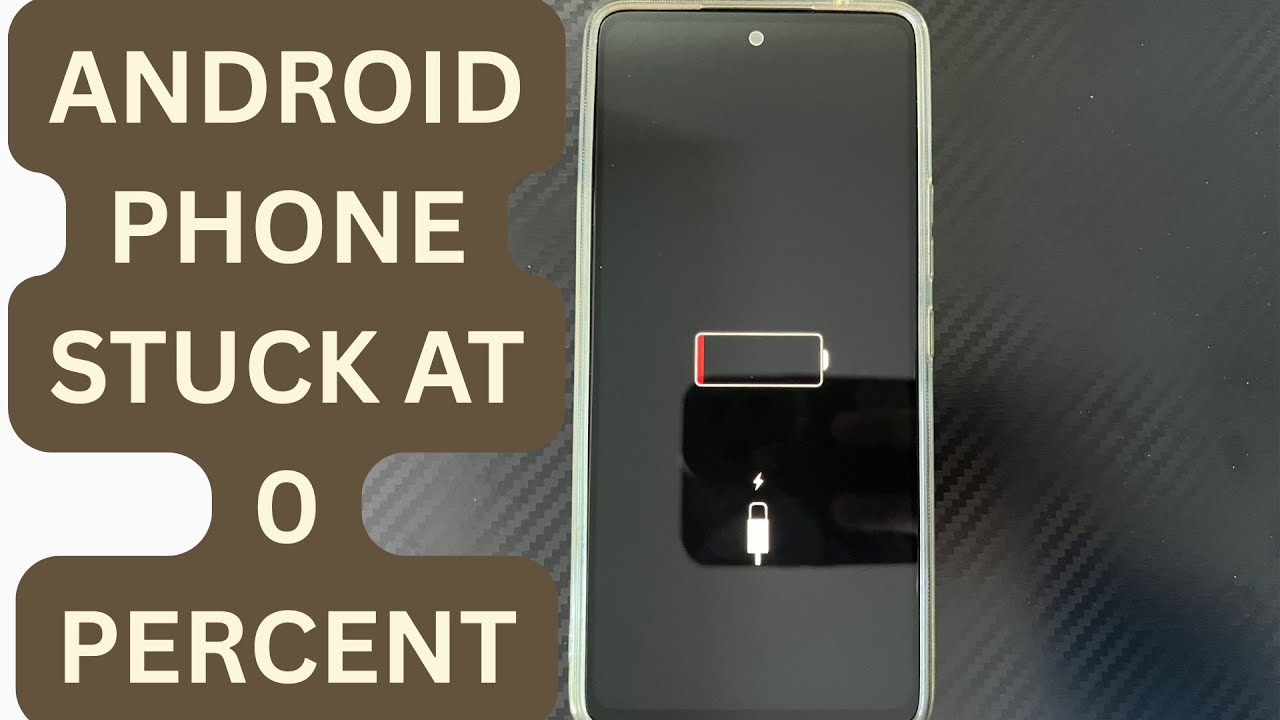
Android Phone Stuck at 0% or 1% Charging All Night: How to Fix
If an Android phone remains at 0% or 1% after charging all night, first stop repeatedly trying to power it on. Test a known-good compatible charger and cable, inspect the charging port, let the phone cool, and leave it charging while switched off. If it remains at 0% or 1%, try a forced restart. If the phone still cannot increase its battery level with known-good charging equipment, the battery, charging port, or charging circuit may require professional inspection.
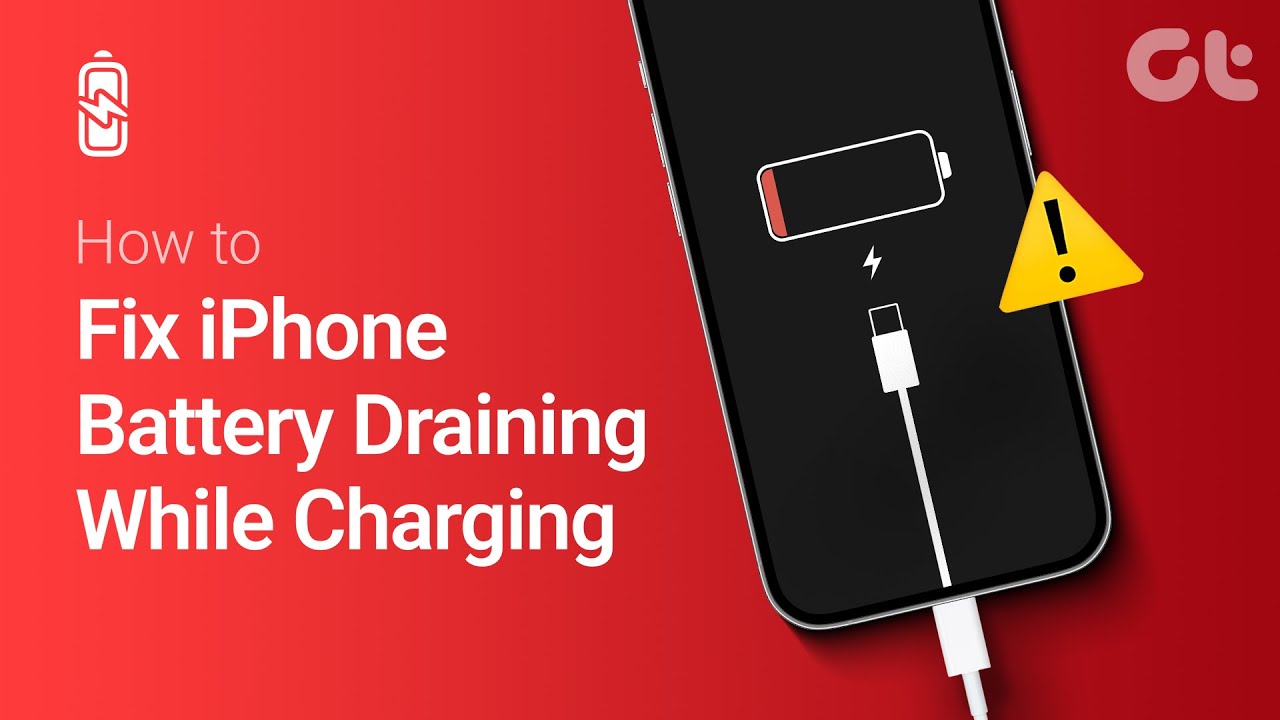
Phone Battery Percentage Dropping While Connected to Charger: 5 Direct Fixes
If your phone battery percentage keeps dropping while it is connected to a charger, the charger may be supplying less power than the phone is consuming. Test another compatible charger and cable, stop demanding apps, check for overheating, inspect the charging port, and test charging while the phone is switched off. If the percentage continues falling with known-good charging equipment, the battery or charging hardware may need inspection.
Itel A-Series Screen Flickering While Charging: Safe Troubleshooting Guide And Fix Steps
If an itel A-Series phone flickers only while charging, unplug it first and test the phone on battery power. Then try a known-good compatible charger and cable, inspect the charging port for dirt or moisture, remove accessories that may trap heat, and avoid using the phone heavily while charging. If flickering continues with different charging equipment or occurs even when the charger is disconnected, the display, charging circuit, battery, or another hardware component may need inspection.