
How to Fix Overheating on Snapdragon 8 Elite Gen 6 Phones | Qevra Buzz
Snapdragon 8 Elite Gen 6 phones can become hot during demanding gaming, charging, high-performance workloads, poor network conditions, or prolonged camera use. To reduce overheating, install system updates, lower demanding game settings, avoid intensive use while charging, remove heat-trapping cases during heavy workloads, improve ventilation, and identify apps causing unusually high CPU or battery usage. If the phone becomes excessively hot during light use or repeatedly shuts down because of temperature, stop using it heavily and have the device checked.
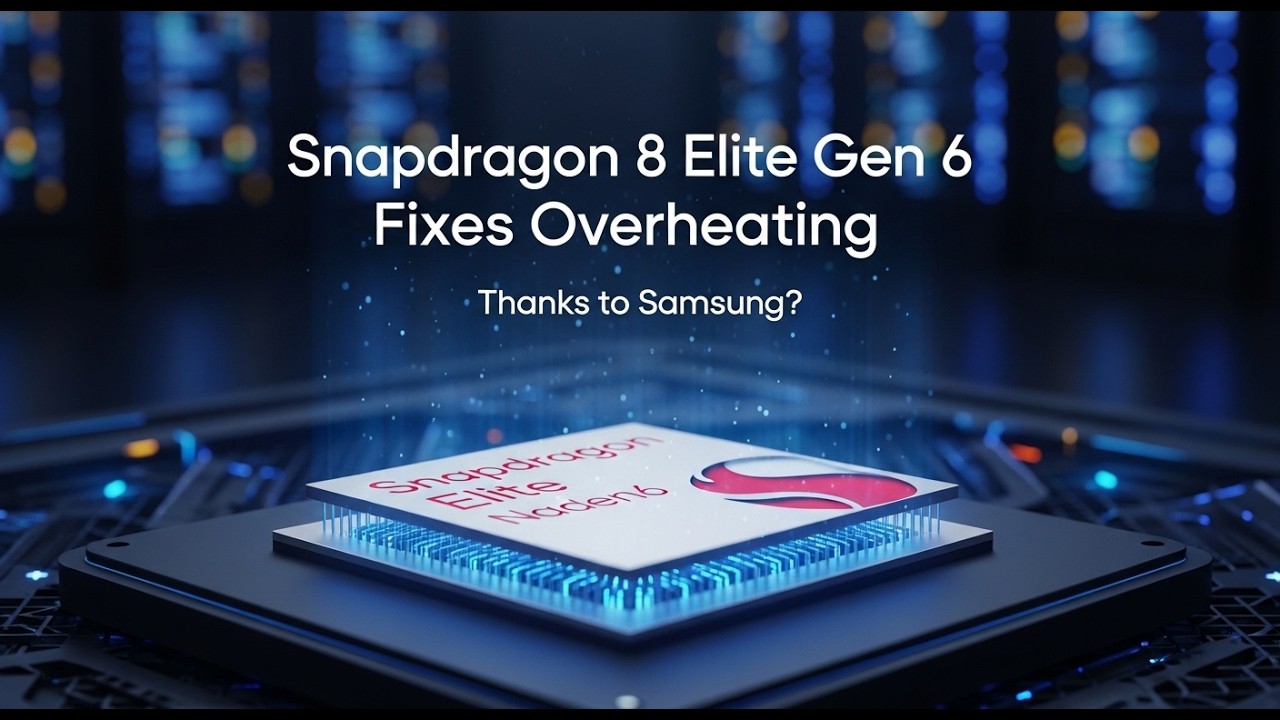
How to Fix Overheating on Snapdragon 8 Elite Gen 6 Phones
If a phone powered by the Snapdragon 8 Elite Gen 6 becomes unusually hot, the first step is to identify what is generating the heat. Gaming, charging, camera recording, poor cellular reception, background applications, high screen brightness, and demanding AI or video workloads can all increase processor and battery activity.
A phone becoming warm during heavy use is not automatically a hardware fault. Persistent excessive heat during light use is different and requires further investigation.
1. Stop the Workload Causing the Heat
If the phone becomes hot while gaming, recording video, running AI features, or using another demanding application, stop the workload temporarily.
Close the demanding application and let the phone return toward normal temperature before continuing.
Do not immediately start another intensive application while the device is still hot.
2. Do Not Play Demanding Games While Charging
Gaming while charging combines two major heat sources: battery charging and sustained processor/GPU activity.
If your phone becomes hot during gaming, disconnect the charger and allow the battery to cool before continuing.
For long gaming sessions, avoid placing the phone on a bed, pillow, blanket, or other surface that blocks heat from escaping.
3. Reduce Game Performance Settings
High frame rates, maximum graphics quality, and sustained high-performance modes increase processor and GPU workload.
Open the affected game's graphics settings and reduce demanding options such as:
- Maximum frame rate
- Ultra graphics
- High-resolution rendering
- Advanced effects
- Ray tracing, where available
- Maximum performance modes
Start with a lower graphics preset and increase settings gradually if the temperature remains reasonable.
4. Check Which Apps Are Consuming the Most Power
An application running continuously in the background can keep the processor and network hardware active.
Open your phone's battery settings and review battery usage.
Look for an app consuming an unusually large amount of battery when you have barely used it.
If one application is responsible:
1. Update it.
2. Force stop it temporarily.
3. Check whether it has excessive background activity.
4. Uninstall it if the overheating began after installing or updating that application.
If the problem disappears after stopping the app, the application or its background activity may be contributing to the heat.
5. Improve Cellular Signal Conditions
A weak cellular signal can increase power consumption because the phone has to work harder to maintain communication with the network.
If the phone becomes hot mainly in areas with very poor reception, compare its temperature in an area with stronger signal.
Avoid repeatedly forcing the phone to search for a cellular connection when you do not need one.
If you are in an area with no usable cellular service, Airplane Mode can reduce unnecessary radio activity when you do not need calls or mobile data.
6. Reduce Screen Brightness
A very bright display increases power consumption, particularly during long periods of use.
Set the screen brightness to a comfortable level instead of keeping it at maximum.
If your phone has an automatic brightness feature, enable it and observe whether battery consumption improves.
7. Remove a Thick Case During Heavy Use
Some cases can restrict heat dissipation.
If the phone becomes hot during prolonged gaming or other intensive workloads, temporarily remove a thick protective case and test the same workload again.
Do not use the phone without protection in situations where dropping it is likely.
The purpose of this test is to determine whether the case is trapping additional heat.
8. Install System and App Updates
Check for available system updates and update applications through the official app store.
Software updates can change processor scheduling, power management, modem behavior, and application performance.
If overheating started immediately after a particular application update, check whether a newer version is available.
Do not install unofficial firmware or modified system software simply to solve a temperature problem.
9. Restart the Phone
A background process can occasionally remain active and consume excessive resources.
Restart the phone and allow it to boot normally.
After restarting, avoid immediately opening multiple demanding applications. Use the phone normally and check whether the temperature returns to normal.
If the overheating disappears after every restart but returns later, check battery and app usage to identify what process is causing the increased workload.
10. Avoid Extreme Environmental Heat
A phone operating in direct sunlight or a very hot environment has less ability to dissipate heat.
Move the phone into a cooler, shaded environment and stop intensive workloads until its temperature decreases.
Do not cool the phone rapidly with ice, a freezer, or other extreme methods. Condensation can damage electronics.
If the Phone Gets Hot During Light Use
Persistent overheating while the phone is idle or performing simple tasks is different from normal heat generated during gaming or other demanding workloads.
Check:
- Battery usage
- Recently installed applications
- System updates
- Cellular signal strength
- Charging behavior
- Whether the phone recently suffered physical or liquid damage
If the phone remains unusually hot after restarting and without demanding applications running, professional diagnosis may be appropriate.
If the Phone Shuts Down Because of Heat
Do not repeatedly restart and stress the phone while it is still hot.
Stop using it and allow it to cool naturally.
If thermal shutdowns happen repeatedly during ordinary tasks rather than demanding workloads, the device should be checked for a battery, charging, software, or hardware problem.
Final Fix
The Snapdragon 8 Elite Gen 6 is designed for demanding workloads, so some heat during sustained gaming, video recording, AI processing, or charging is expected.
The practical fix is to reduce the workload generating the heat, avoid intensive use while charging, improve ventilation, check battery and app usage, maintain current software, and avoid excessive environmental heat.
If the phone becomes excessively hot during light use, repeatedly shuts down because of temperature, or shows signs of battery damage, stop intensive use and have the device professionally inspected.
Never miss a tech solution from FlamesNova
Make FlamesNova your trusted and preferred source on Google Search
All factual claims and technical steps are cited and verified against direct documentation.
Contribution: Grounding reference for verified reporting.
Contribution: Grounding reference for verified reporting.
Contribution: Grounding reference for verified reporting.
Contribution: Grounding reference for verified reporting.
Related How-To Guides
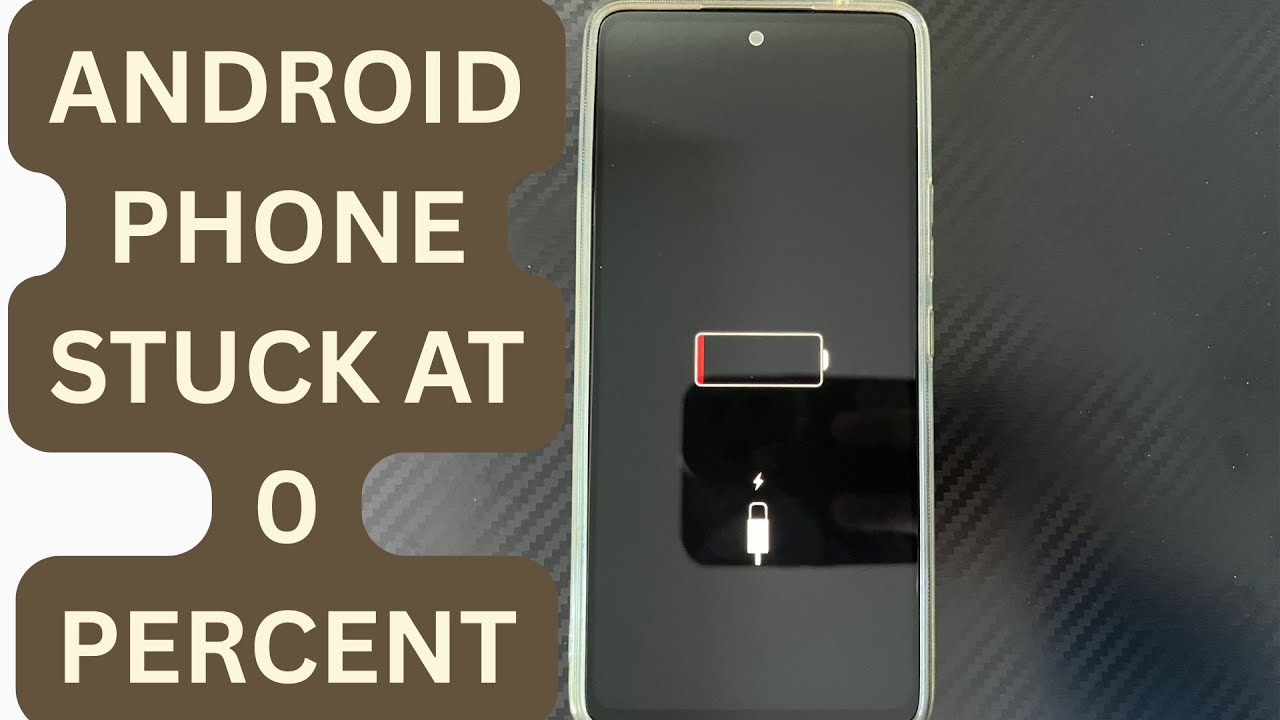
Android Phone Stuck at 0% or 1% Charging All Night: How to Fix
If an Android phone remains at 0% or 1% after charging all night, first stop repeatedly trying to power it on. Test a known-good compatible charger and cable, inspect the charging port, let the phone cool, and leave it charging while switched off. If it remains at 0% or 1%, try a forced restart. If the phone still cannot increase its battery level with known-good charging equipment, the battery, charging port, or charging circuit may require professional inspection.
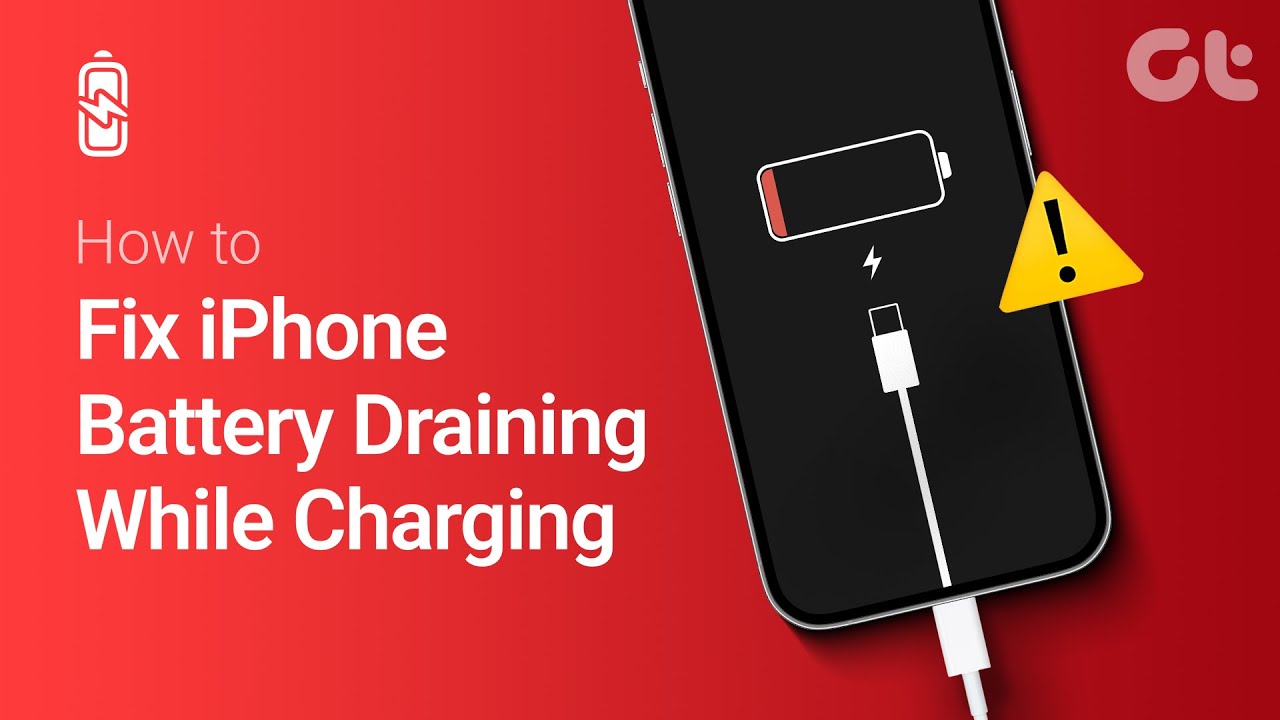
Phone Battery Percentage Dropping While Connected to Charger: 5 Direct Fixes
If your phone battery percentage keeps dropping while it is connected to a charger, the charger may be supplying less power than the phone is consuming. Test another compatible charger and cable, stop demanding apps, check for overheating, inspect the charging port, and test charging while the phone is switched off. If the percentage continues falling with known-good charging equipment, the battery or charging hardware may need inspection.
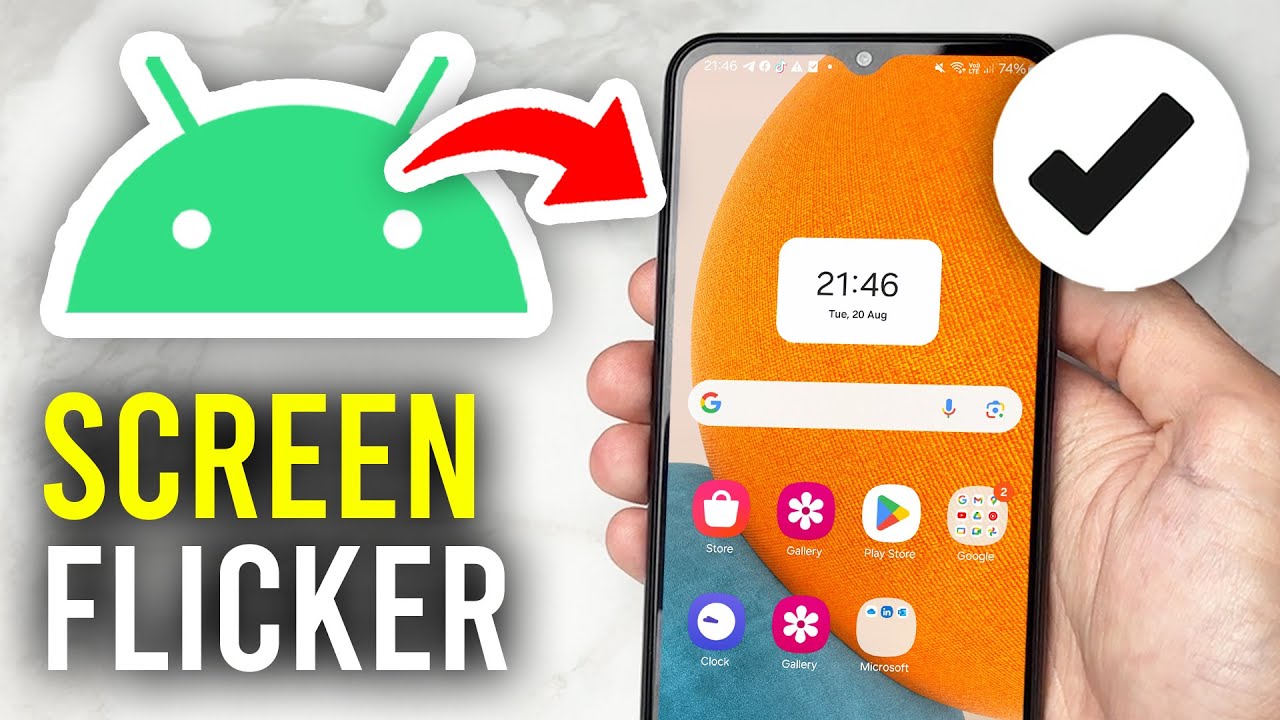
Itel A-Series Screen Flickering While Charging: Safe Troubleshooting Guide And Fix Steps
If an itel A-Series phone flickers only while charging, unplug it first and test the phone on battery power. Then try a known-good compatible charger and cable, inspect the charging port for dirt or moisture, remove accessories that may trap heat, and avoid using the phone heavily while charging. If flickering continues with different charging equipment or occurs even when the charger is disconnected, the display, charging circuit, battery, or another hardware component may need inspection.