
How to Fix iPhone 18 Pro Face ID Rebooting Bug| full guide| qevra buzz
If your iPhone 18 Pro or iPhone 18 Pro Max freezes and restarts after a failed Face ID attempt, the issue is linked to a software bug in iOS 27. Apple has confirmed that a software update is being prepared. Until the update is available, avoid repeatedly triggering the failed Face ID sequence, use your passcode when possible, and install the fix as soon as it appears under Settings > General > Software Update.
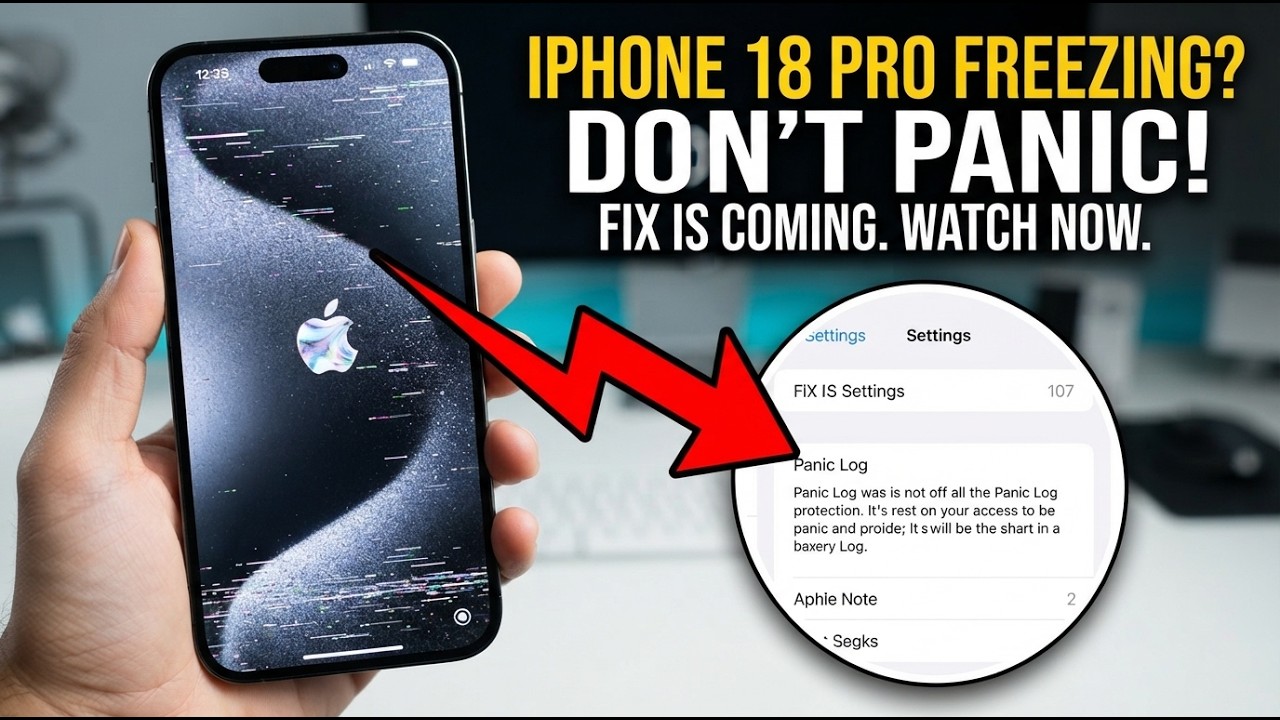
How to Fix iPhone 18 Pro Face ID Rebooting Bug
Some iPhone 18 Pro and iPhone 18 Pro Max users are experiencing a specific problem where a failed Face ID authentication can cause the phone to freeze, stop responding to touch, and restart.
The problem has been reported when Face ID is used to unlock protected apps or other content. Apple has confirmed that a software update is being prepared to address the issue.
What Causes the iPhone 18 Pro Face ID Reboot?
The problem appears to be related to iOS 27 and the redesigned Face ID system on the iPhone 18 Pro and iPhone 18 Pro Max.
The failure sequence reported by affected users is:
1. Face ID is requested by a protected app or feature.
2. Face ID fails to authenticate.
3. The phone becomes unresponsive.
4. The display stops responding to touch.
5. The iPhone restarts automatically.
The issue does not affect every iPhone 18 Pro or iPhone 18 Pro Max.
The Main Fix: Update iOS
Because Apple has confirmed that a software fix is being prepared, the permanent solution is to install the iOS update containing the fix when it becomes available.
On your iPhone, open:
Settings > General > Software Update
Wait for the phone to check for an available update.
If an update addressing the problem is available, install it and restart the iPhone when prompted.
Keep the iPhone connected to power during the update if necessary and make sure you have a reliable internet connection.
What to Do Before the Fix Is Available
If your iPhone repeatedly freezes after a failed Face ID attempt, avoid deliberately reproducing the problem.
When a protected app requests Face ID, use your device passcode when the option is available instead of repeatedly retrying Face ID.
This does not repair the underlying software problem, but it can help you avoid triggering the reported freeze-and-restart sequence.
If the iPhone Freezes
If the iPhone becomes completely unresponsive, perform a force restart.
On an iPhone with Face ID:
1. Quickly press and release the Volume Up button.
2. Quickly press and release the Volume Down button.
3. Press and hold the Side button.
4. Keep holding the Side button until the Apple logo appears.
Release the button when the Apple logo appears and allow the iPhone to restart.
Check for the Software Update Again
If no update is available yet, check again later.
Go to:
Settings > General > Software Update
The absence of an update does not mean your phone is permanently damaged. Apple has confirmed that a software update is being developed to address the Face ID-related restart problem.
Should You Replace the iPhone?
Do not assume that the Face ID freeze-and-reboot behavior automatically means the iPhone has defective hardware.
Apple's confirmed software fix indicates that the reported issue can be addressed through software.
If your iPhone continues restarting after the relevant software update has been installed, or if Face ID shows other hardware-related errors, contact Apple Support or an authorized service provider for diagnostics.
If Face ID Is Not Working at All
The rebooting bug is different from ordinary Face ID problems.
If Face ID simply fails to recognize you without freezing or restarting the phone, check that the Face ID area is clean and unobstructed, make sure your face is visible to the sensor system, and check your Face ID settings.
If Face ID repeatedly reports that it is unavailable, even after restarting and updating iOS, the device may require further diagnostics.
Bottom Line
The iPhone 18 Pro Face ID freezing and rebooting problem is being addressed through an iOS software update.
Until the update is available, avoid repeatedly triggering the failed Face ID sequence. If the phone freezes, use the force-restart procedure above. Once Apple releases the relevant update, install it through Settings > General > Software Update.
The update is the important fix; repeatedly resetting or replacing the phone should not be the first response to this specific software-related behavior.
```
Never miss a tech solution from FlamesNova
Make FlamesNova your trusted and preferred source on Google Search
All factual claims and technical steps are cited and verified against direct documentation.
Contribution: Grounding reference for verified reporting.
Contribution: Grounding reference for verified reporting.
Contribution: Grounding reference for verified reporting.
Contribution: Grounding reference for verified reporting.
Related How-To Guides
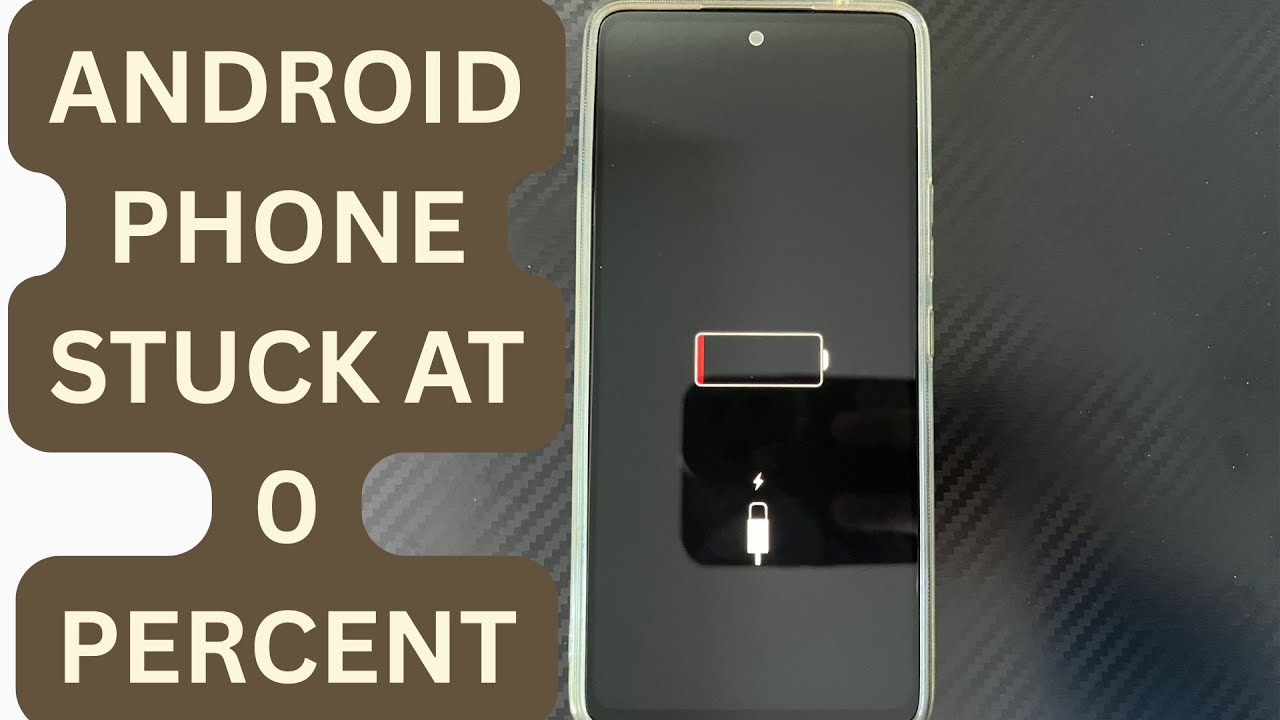
Android Phone Stuck at 0% or 1% Charging All Night: How to Fix
If an Android phone remains at 0% or 1% after charging all night, first stop repeatedly trying to power it on. Test a known-good compatible charger and cable, inspect the charging port, let the phone cool, and leave it charging while switched off. If it remains at 0% or 1%, try a forced restart. If the phone still cannot increase its battery level with known-good charging equipment, the battery, charging port, or charging circuit may require professional inspection.
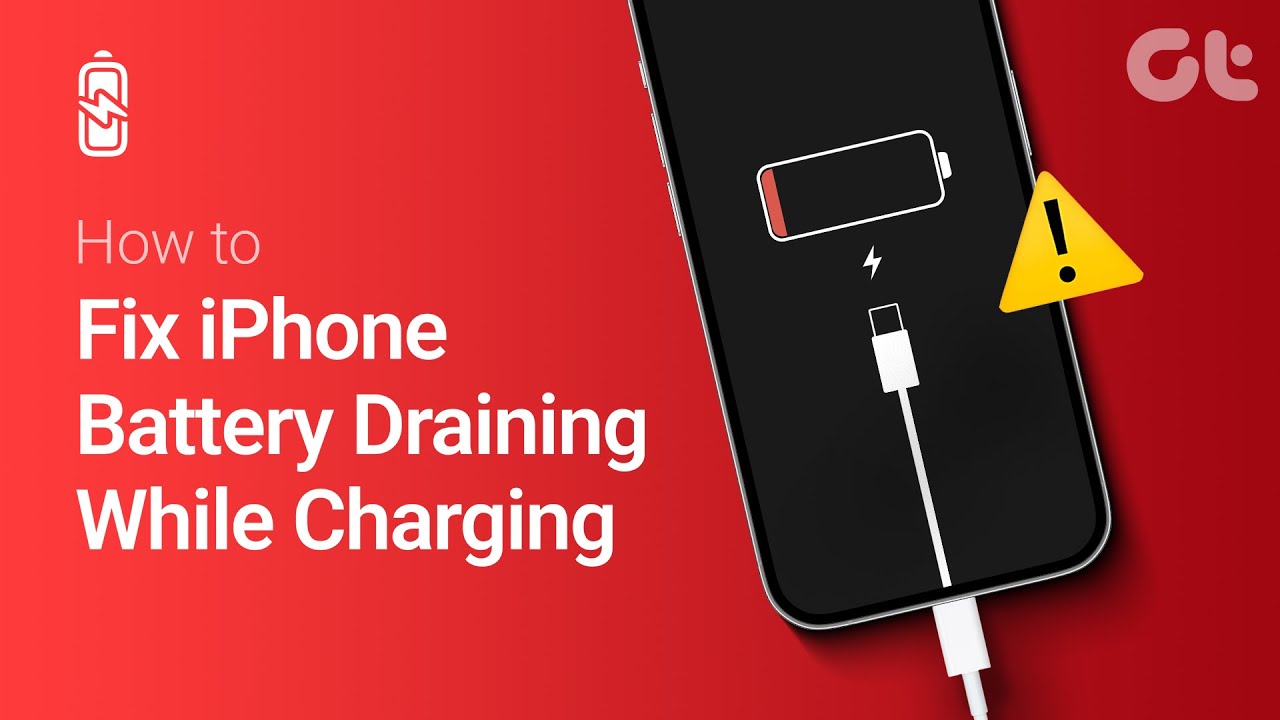
Phone Battery Percentage Dropping While Connected to Charger: 5 Direct Fixes
If your phone battery percentage keeps dropping while it is connected to a charger, the charger may be supplying less power than the phone is consuming. Test another compatible charger and cable, stop demanding apps, check for overheating, inspect the charging port, and test charging while the phone is switched off. If the percentage continues falling with known-good charging equipment, the battery or charging hardware may need inspection.
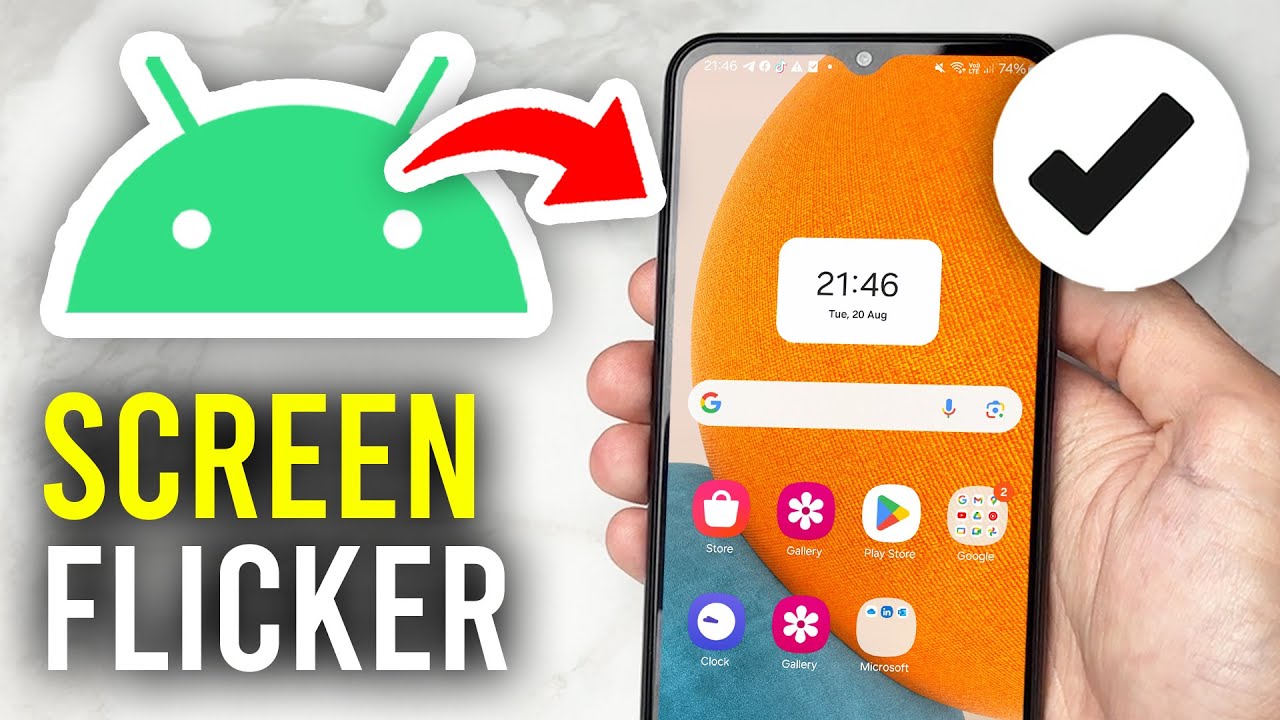
Itel A-Series Screen Flickering While Charging: Safe Troubleshooting Guide And Fix Steps
If an itel A-Series phone flickers only while charging, unplug it first and test the phone on battery power. Then try a known-good compatible charger and cable, inspect the charging port for dirt or moisture, remove accessories that may trap heat, and avoid using the phone heavily while charging. If flickering continues with different charging equipment or occurs even when the charger is disconnected, the display, charging circuit, battery, or another hardware component may need inspection.