
How to Fix Apps Keep Crashing on Android| Full Explanation| qevra buzz
If Android apps keep crashing, update the affected app and Android system first. If the problem continues, force-stop the app, clear its cache, check available storage, and restart the phone. If only one app crashes, reinstalling that app can fix corrupted local files. If many apps crash at once, check Android System WebView, Chrome, system updates, and available storage.
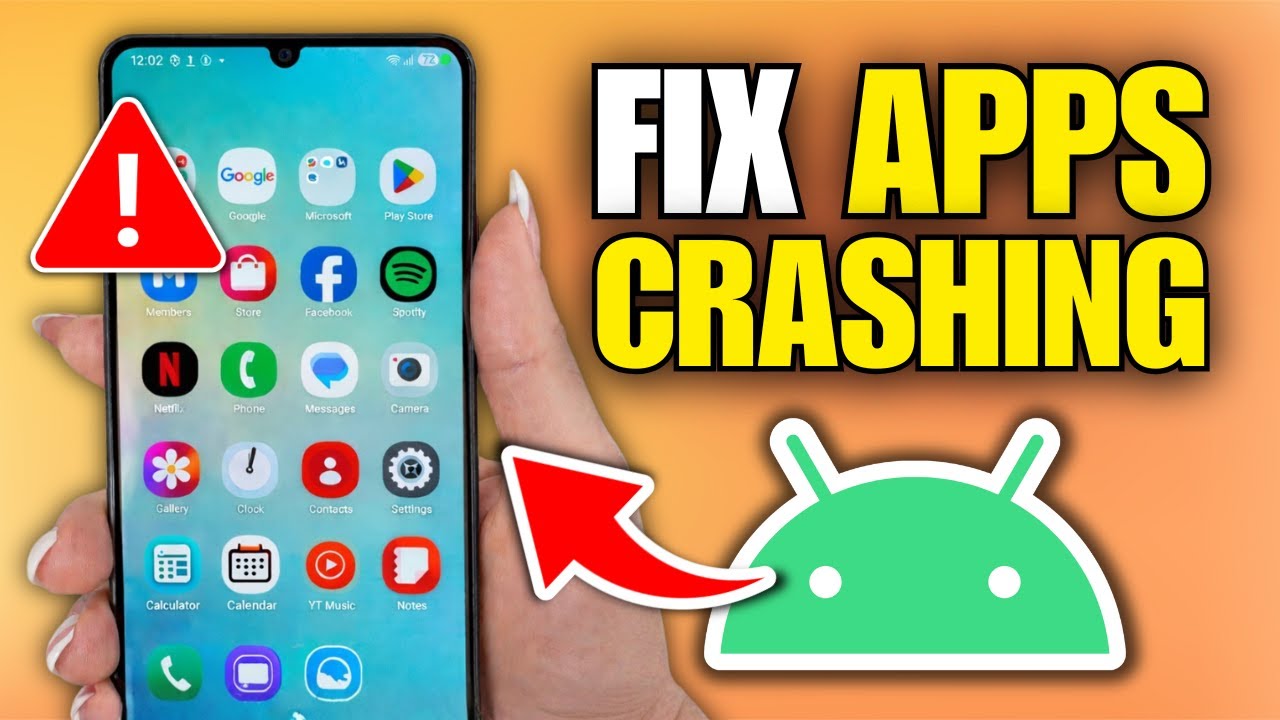
How to Fix Apps Keep Crashing on Android
If apps keep closing immediately or show “App keeps stopping” on your Android phone, the cause is usually a faulty app update, corrupted cache or app data, insufficient storage, outdated system components, or a problem with the Android system.
Update the App
Open the Google Play Store and search for the affected app.
If an Update button appears, install the latest version and open the app again.
An outdated app can crash when it is no longer compatible with the Android version or other system components on the phone.
Restart the Phone
Restart the Android phone before changing advanced settings.
A restart clears temporary processes and can resolve a crash caused by a temporary system or memory problem.
After restarting, open the affected app again.
Force Stop the App
If the app still crashes, force it to close completely.
Go to:
Settings > Apps > See all apps > [Affected app] > Force stop
Confirm the action and open the app again.
The exact menu names can vary between Android manufacturers.
Clear the App Cache
A corrupted temporary file can cause an app to crash.
Go to:
Settings > Apps > See all apps > [Affected app] > Storage & cache > Clear cache
Then open the app.
Clearing the cache does not normally remove your account or personal files stored by the app.
Check Your Phone's Storage
Very low storage can cause apps and Android services to behave incorrectly.
Go to:
Settings > Storage
If the phone is nearly full, remove unnecessary videos, downloads, duplicate files, or unused apps.
Do not delete important files simply to create space. Back up anything you need before removing it.
Update Android
Check whether a system update is available.
Go to:
Settings > System > Software update
Install an available update and restart the phone afterward.
The location of the update option depends on the phone manufacturer.
Update Android System WebView and Chrome
Some Android applications rely on system components provided by Android System WebView and Chrome.
Open the Google Play Store and search for:
Android System WebView
Then search for:
Google Chrome
Install available updates for both and test the affected app again.
Clear the App Data
If clearing the cache does not solve the problem, corrupted app data may be responsible.
Go to:
Settings > Apps > See all apps > [Affected app] > Storage & cache > Clear storage
This can remove the app's locally stored information and may sign you out.
Only use this step if you know your login details and understand that locally stored app data may be deleted.
Reinstall the App
If the app still crashes, uninstall it and install it again from the Google Play Store.
This replaces the app's installation files and can fix problems caused by corrupted files.
Before uninstalling, make sure important information inside the app is synchronized or backed up.
If Many Apps Are Crashing
If several unrelated apps started crashing at the same time, do not reinstall every application individually.
First:
1. Restart the phone.
2. Check available storage.
3. Install Android system updates.
4. Update Android System WebView.
5. Update Google Chrome.
6. Install available updates for the affected apps.
If the crashes began immediately after a particular system or app update, identify which component changed around the time the problem started.
If the App Crashes Only When You Perform One Action
If the app opens normally but crashes when you perform a specific action, the problem may be connected to that function rather than the entire application.
For example, if a camera app crashes only when switching to video mode, test whether another camera application can access the camera.
This can help determine whether the problem is with the app or the phone's hardware/system component.
When the Problem Is More Serious
If the phone regularly freezes, restarts by itself, shows system errors, or many unrelated applications continue crashing after updates and troubleshooting, the problem may involve the Android system or hardware.
Back up important data before performing a factory reset or taking the phone for repair.
A factory reset should be a last resort because it erases user data from the device.
Never miss a tech solution from FlamesNova
Make FlamesNova your trusted and preferred source on Google Search
All factual claims and technical steps are cited and verified against direct documentation.
Contribution: Grounding reference for verified reporting.
Contribution: Grounding reference for verified reporting.
Contribution: Grounding reference for verified reporting.
Contribution: Grounding reference for verified reporting.
Related How-To Guides
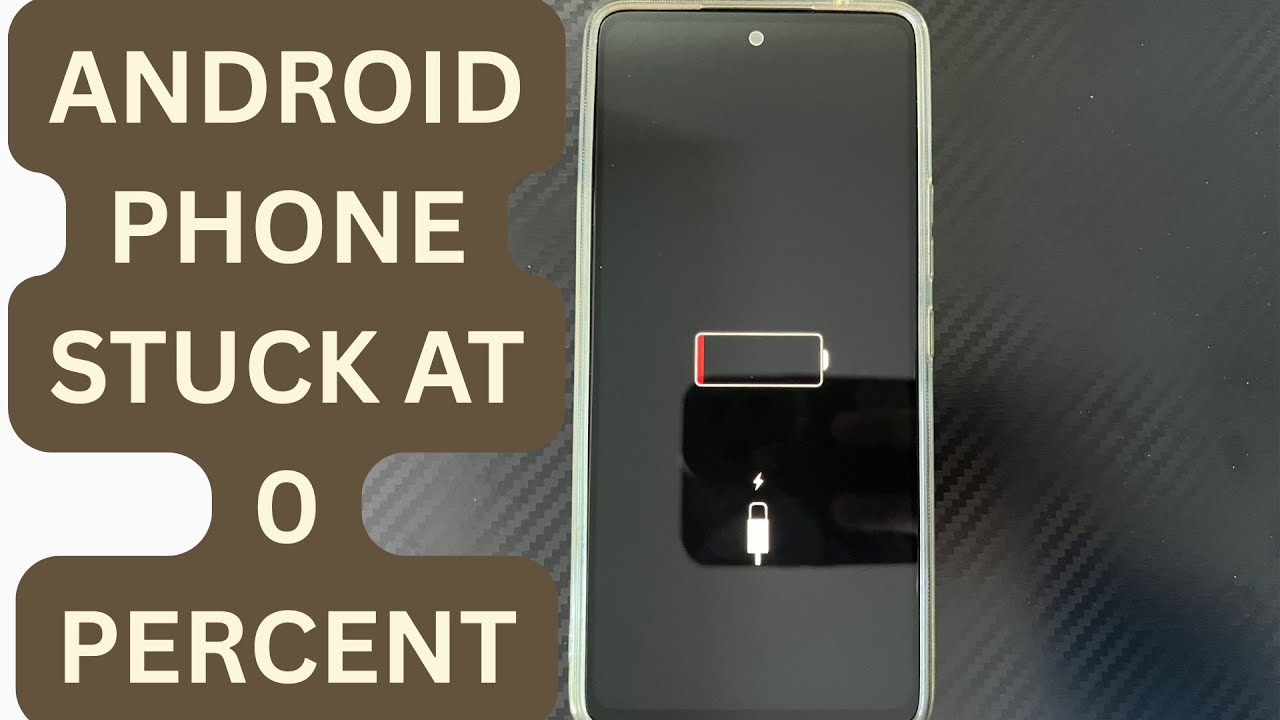
Android Phone Stuck at 0% or 1% Charging All Night: How to Fix
If an Android phone remains at 0% or 1% after charging all night, first stop repeatedly trying to power it on. Test a known-good compatible charger and cable, inspect the charging port, let the phone cool, and leave it charging while switched off. If it remains at 0% or 1%, try a forced restart. If the phone still cannot increase its battery level with known-good charging equipment, the battery, charging port, or charging circuit may require professional inspection.
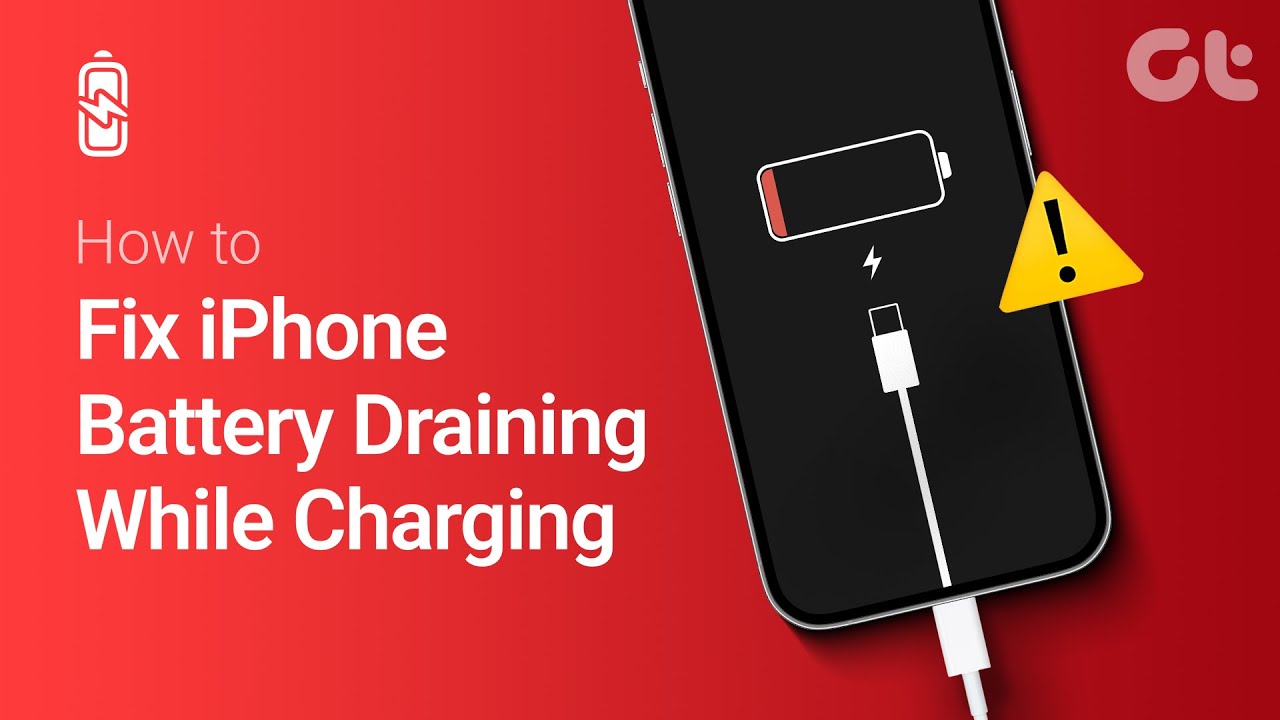
Phone Battery Percentage Dropping While Connected to Charger: 5 Direct Fixes
If your phone battery percentage keeps dropping while it is connected to a charger, the charger may be supplying less power than the phone is consuming. Test another compatible charger and cable, stop demanding apps, check for overheating, inspect the charging port, and test charging while the phone is switched off. If the percentage continues falling with known-good charging equipment, the battery or charging hardware may need inspection.
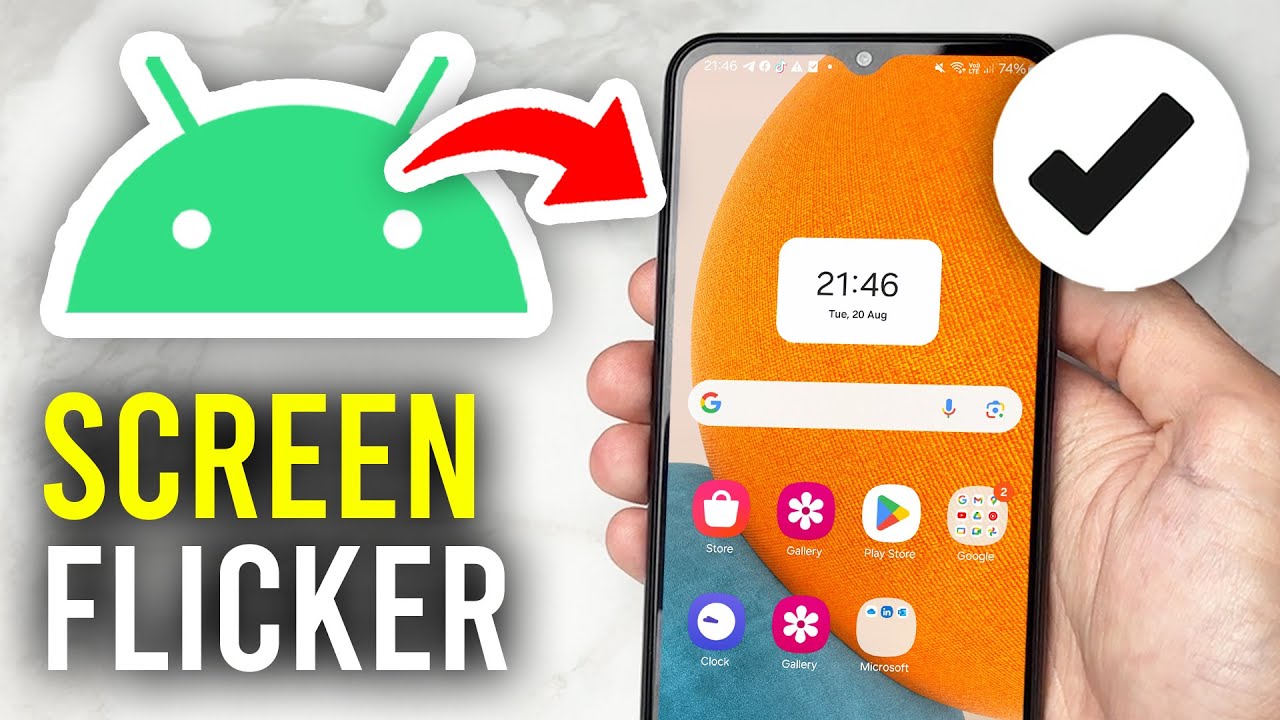
Itel A-Series Screen Flickering While Charging: Safe Troubleshooting Guide And Fix Steps
If an itel A-Series phone flickers only while charging, unplug it first and test the phone on battery power. Then try a known-good compatible charger and cable, inspect the charging port for dirt or moisture, remove accessories that may trap heat, and avoid using the phone heavily while charging. If flickering continues with different charging equipment or occurs even when the charger is disconnected, the display, charging circuit, battery, or another hardware component may need inspection.